Archive or Delete a Client
Remove clients from active tracking while preserving or removing data.
Reducing Your Active Caseload
When a client leaves your caseload, you can archive or delete them. Both options reduce your active client count.
Note: This documentation refers to “clients” and “students” interchangeably. Your team settings determine which term appears in the app.
Archive a Client
Archiving hides the client from your active list while preserving all data.
- Open the client profile
- Tap the gear icon at the top right
- Select Archive
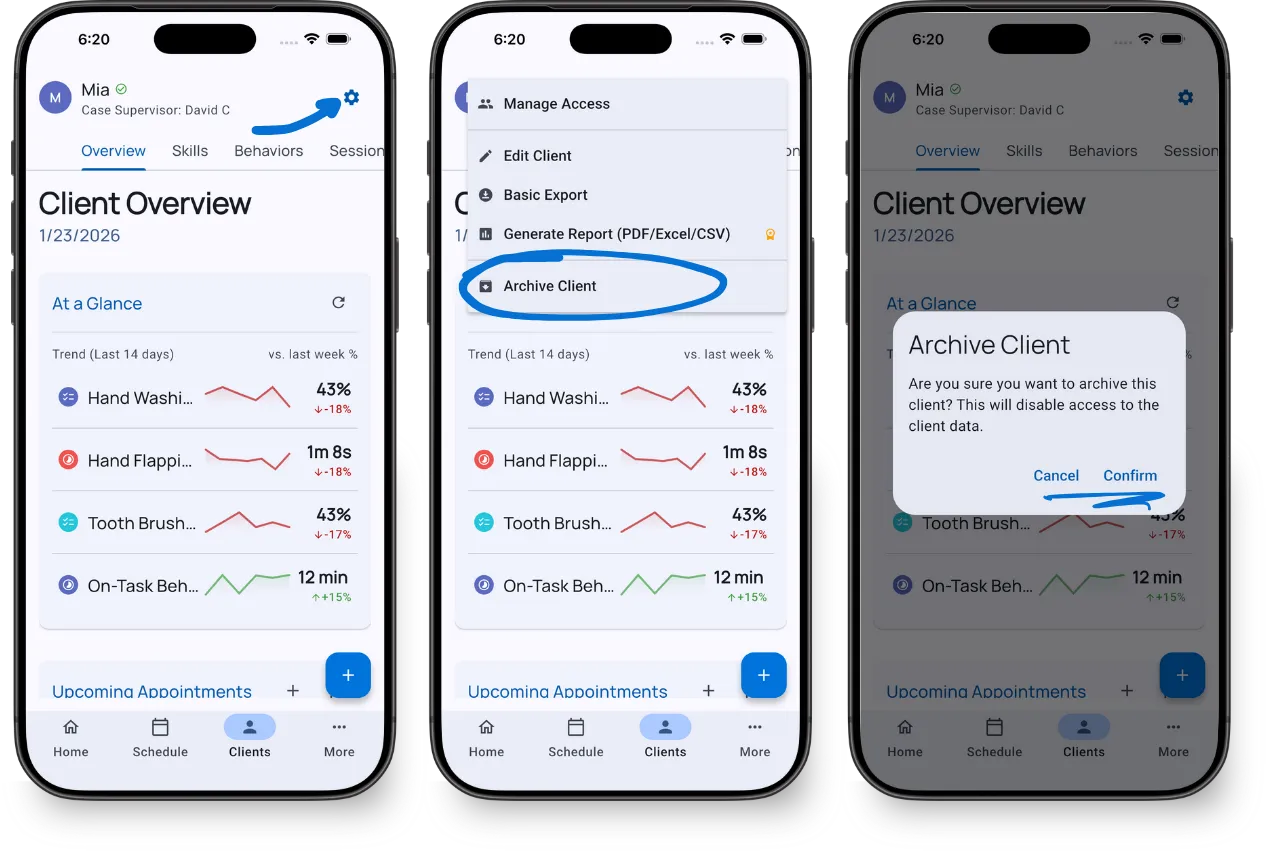
Archived clients:
- Don’t appear in your active caseload by default
- Keep all session data, graphs, and reports intact
- Can be restored at any time
To view archived clients: On your caseload list, change the filter from “Active” to “All (includes archived)”.
Delete a Client
Deleting permanently removes the client and all associated data.
- Open the client profile
- Tap the gear icon at the top right
- Select Edit
- Tap the three-dots icon at the top right
- Select Delete
- Confirm the deletion
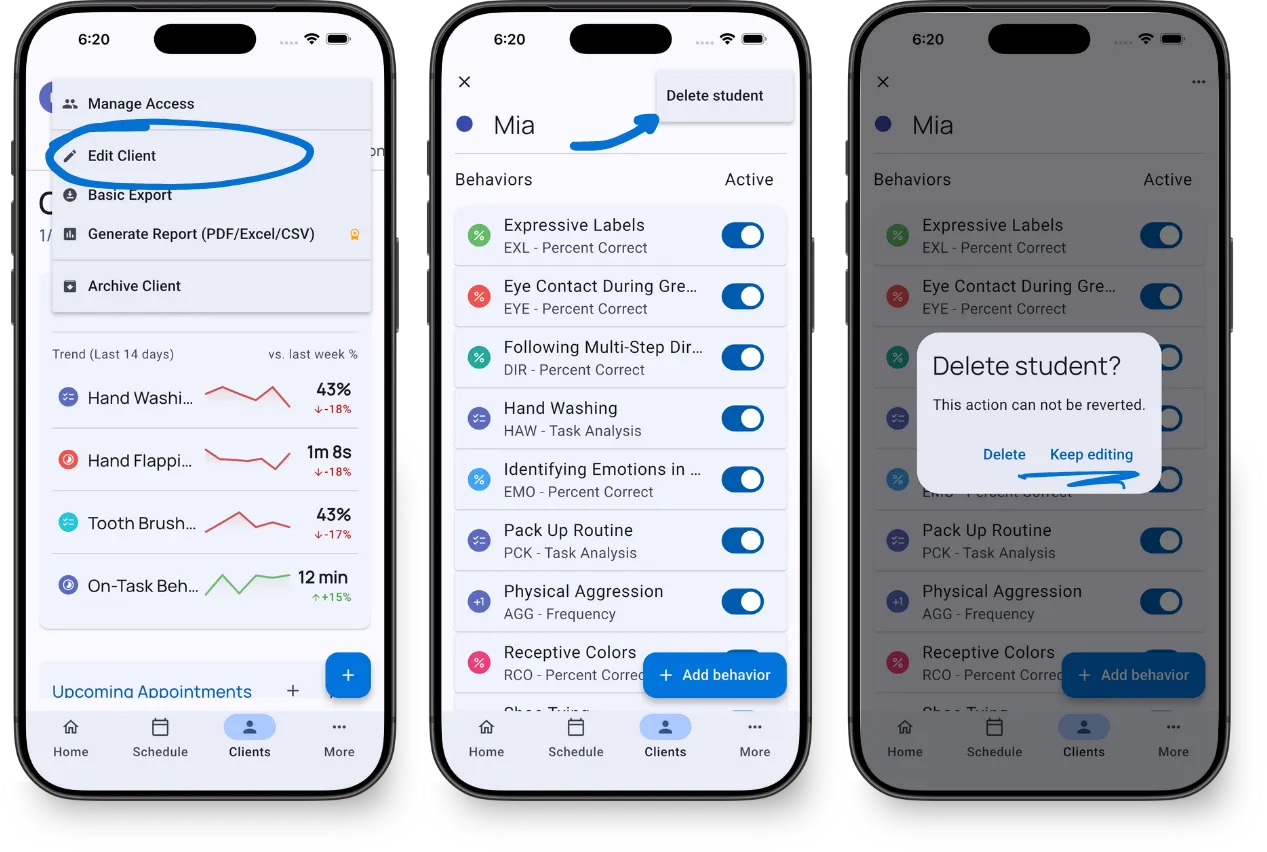
Why the extra steps? Delete is intentionally harder to access than archive. This prevents accidental data loss.
Deleted data cannot be recovered. If you might need the data later, use Archive instead.
When to Archive vs Delete
| Scenario | Recommendation |
|---|---|
| Client discharged but may return | Archive |
| Need records for compliance/audits | Archive |
| Test client or duplicate entry | Delete |
| Client requested data removal | Delete |
What’s Next?
- Your Caseload - Filter and sort your client list
- Managing Client Access - Control team permissions
Need Help?
Questions about archiving or deleting clients? Email support@tallyflex.com for assistance.