Inviting Team Members
Add BCBAs, RBTs, teachers, and staff to your team and assign roles.
Add someone to your team
Owners and Administrators can invite staff while the Teams subscription is active. Open Team Management from the team icon, or More → Team on a phone, then select Invite.
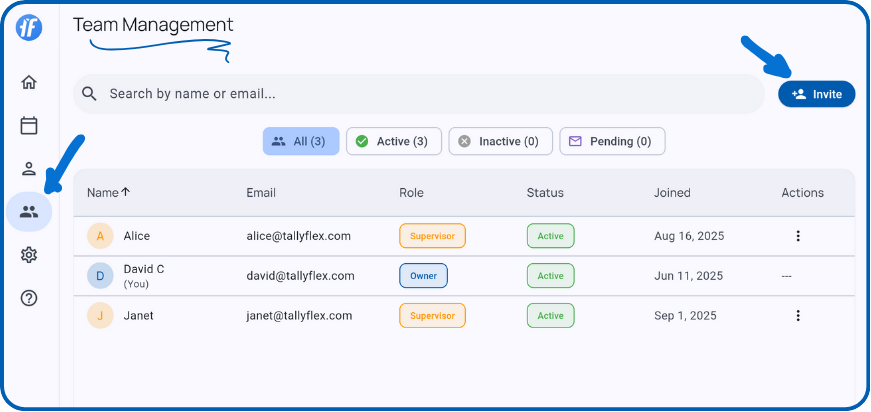
Enter the person’s email and choose the role they need:
| Role | Use when the person needs to |
|---|---|
| Administrator | Manage staff and access, create clients, and access all team clients |
| Supervisor | Edit programs on clients where they have appropriate access |
| Therapist | Collect data on assigned clients without editing programs |
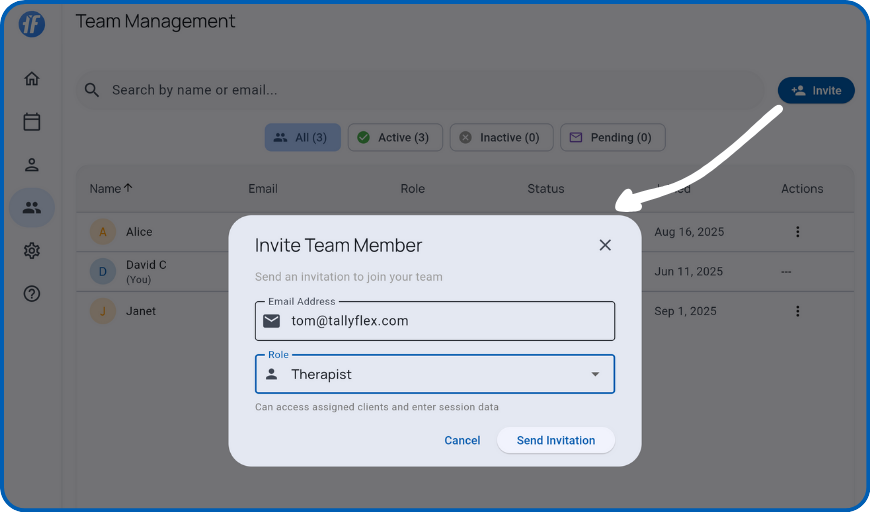
Select Send Invitation. For an existing TallyFlex account, this sends an invitation link that expires after 7 days. For a new address, it creates a team account and sends a welcome email with password-setup instructions. Check the address before sending because a new account is added to the team immediately.
Follow up and assign clients
Use Pending in Team Management to find invitations awaiting acceptance. Open the invitation’s action menu to resend or cancel it. Resending extends its expiration by 7 days.
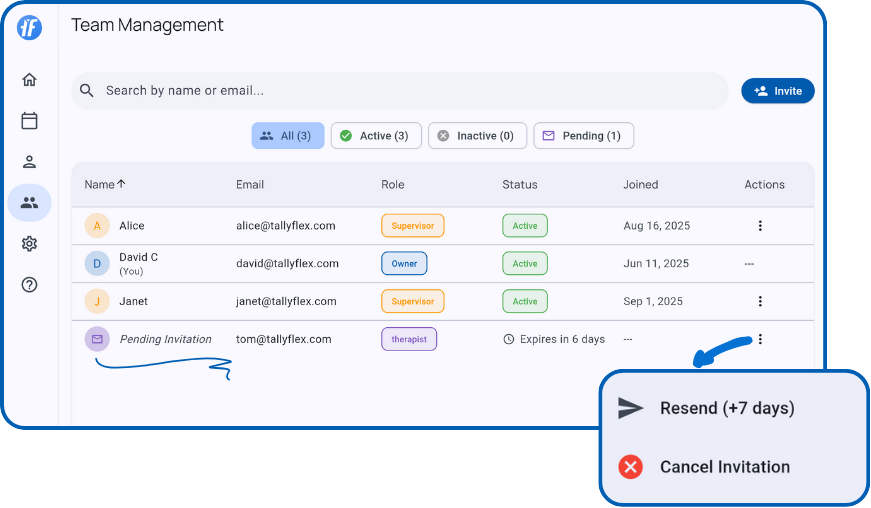
For a Supervisor or Therapist, select their member row and assign client access. Administrators already have access to all clients.
See Joining a Team for the recipient’s steps, or Managing Team Members to change a role later.