Filter Your Schedule
Find exactly what you need. Filter by student, team member, or status.
3 min Updated December 16, 2025
Narrow Your View
Use the filter panel to show only the appointments you need.
By Student
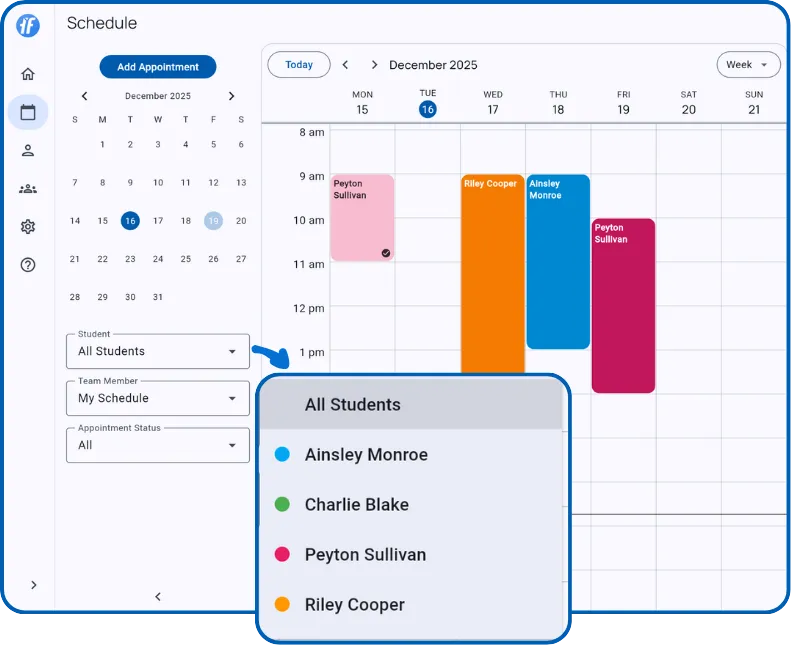
- All Students - See your entire caseload
- Specific student - Focus on one client’s appointments
By Team Member
Requires: Teams plan
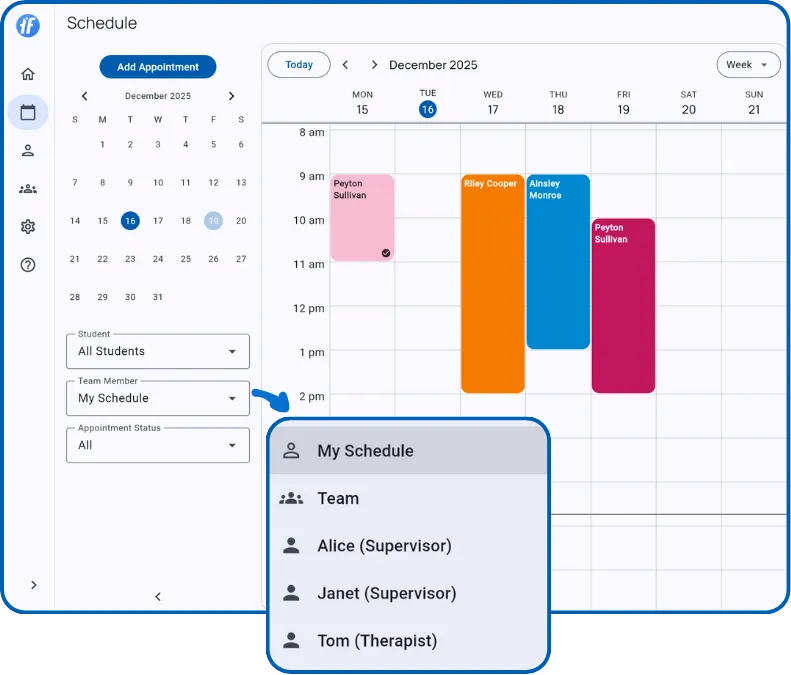
- My Schedule - Only your appointments
- Team - Everyone’s appointments
- Specific member - One person’s schedule (useful for supervision)
By Status
- All - Every appointment
- Scheduled - Upcoming appointments
- Ongoing - Sessions in progress
- Completed - Finished sessions
- Missed - Appointments that passed without starting
- Canceled - Appointments that were canceled
Combining Filters
| Student | Team Member | What You See |
|---|---|---|
| All | Single member | All clients for that staff member |
| Single student | Team | All staff for that client |
| Single student | Single member | Specific pairing only |
| All | Team | Daily summary (Team Overview) |
Team Overview
When both filters are set to “All,” the calendar would show every appointment for every student and every team member. That’s too much data to display clearly, so TallyFlex shows a daily summary instead.
The summary shows:
- Ongoing - Sessions happening now
- Completed Today - Sessions finished today
- Upcoming Today - Sessions scheduled for later
- Students - How many students have been seen
- Staff Active - How many team members are working
Select a specific student or team member to view the detailed calendar.
What’s Next?
- Create Appointments - Schedule new sessions
- Manage Appointments - View details and start sessions
Need Help?
Questions about filtering? Email support@tallyflex.com.