Active Session Interface
Navigate the session screen, use tabs and view modes, access tools, and collect ABA data efficiently.
Session Interface
When a session is active, you have full control over data collection from a single screen.
Note: This documentation refers to “clients” and “students” interchangeably. Your terminology setting determines which term appears in the app.
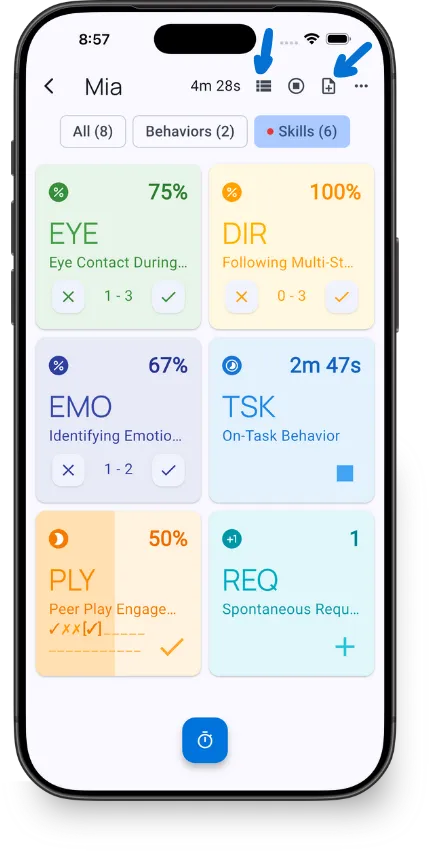
Top Bar
The top bar shows key information and controls:
- Client name - Current client being tracked
- Elapsed time - Session duration, updating in real-time
- View toggle - Switch between tile and list views
- Notes - Add quick observations during the session
- Stop - End the session and view summary
- More options - Access additional tools
View Modes
Each tracker displays its abbreviation (up to 3 letters) and name. Choose the view that fits how you work.
Tile View (default) - Large cards for easy tapping
- See abbreviation prominently with partial name
- Best when you can quickly identify trackers by abbreviation
- Fits more trackers on screen at once
- Easier to tap during active therapy
List View - Compact rows showing full names
- See complete tracker names without truncation
- Best when you have many similar trackers
- Easier to distinguish trackers with similar abbreviations
- Scroll to see all targets
Tap the view toggle icon in the top bar to switch.
Tab Filtering
Filter visible trackers using the tabs above your tiles:
- All - Show all behaviors and skills
- Behaviors - Show only behavior targets
- Skills - Show only skill acquisition targets
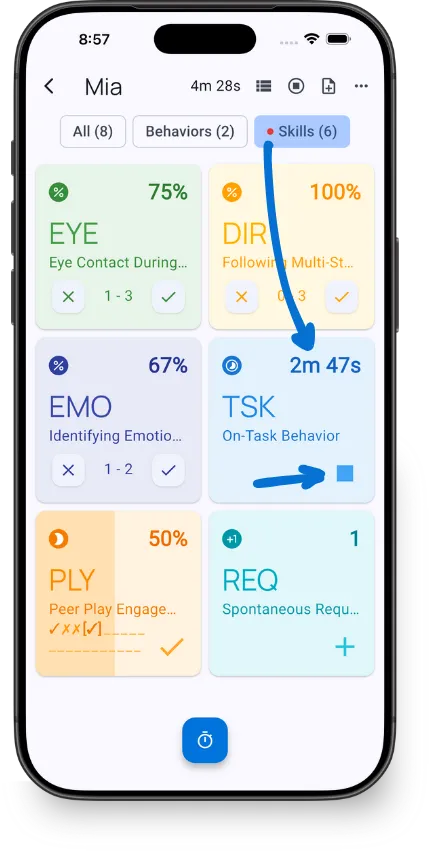
Red dot indicator: When a duration tracker is running, its tab shows a red dot so you can quickly spot if there are active timers.
More Options Menu
Tap the more options icon (⋯) to access additional tools:
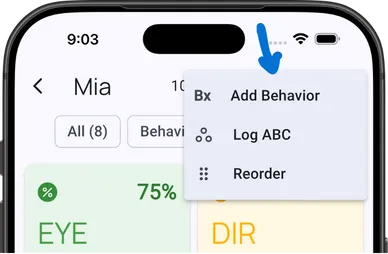
- Add Behavior - Create a new behavior or skill tracker mid-session
- Log ABC - Record Antecedent-Behavior-Consequence data with session context (see ABC Data)
- Daily Points - Open the student’s Daily Points entry on compact layouts when the feature is enabled (see Daily Points)
- Reorder - Rearrange tile positions
Reorder Tiles
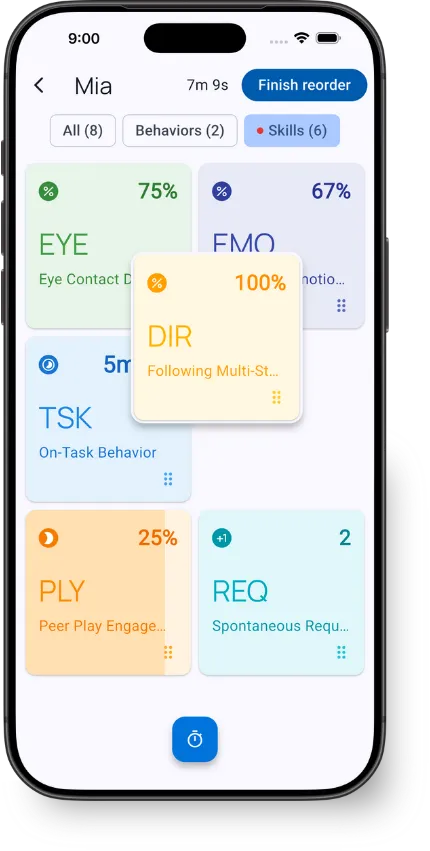
Customize tile layout for your workflow:
- Tap More Options → Reorder
- Long-press and drag tiles to new positions
- Tap Finish reorder to save
Layout is saved per client for future sessions.
Collaborative Quick Notes
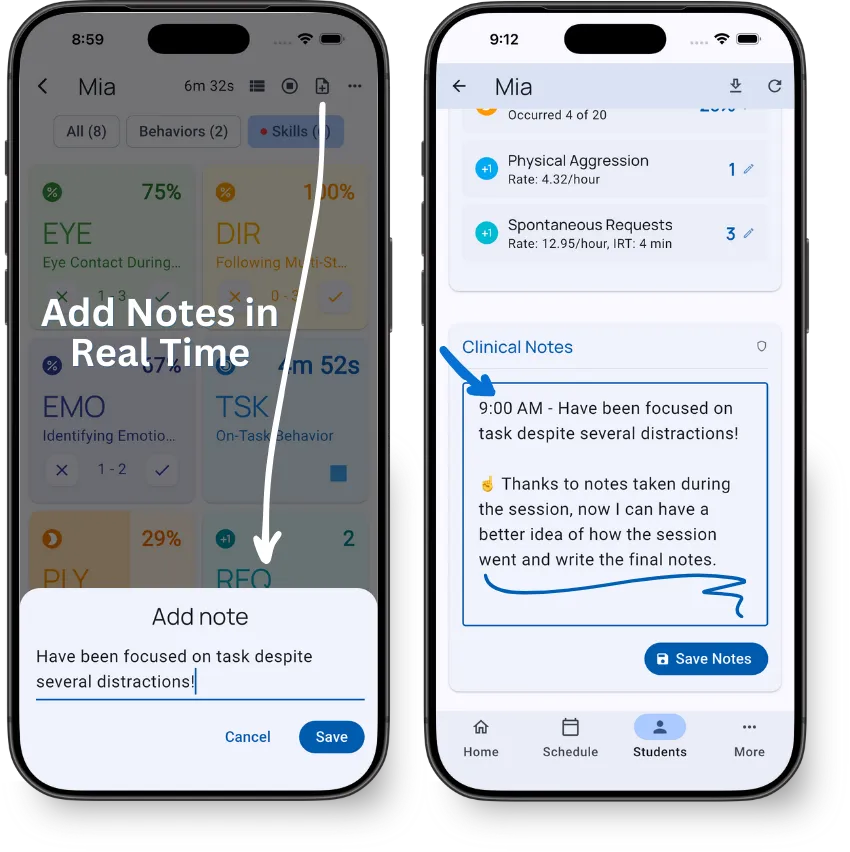
Open Notes to capture quick observations without leaving the session. Notes include the time and contributor name when available, and connected collaborators see new notes while the session is active.
If another team member adds a note while Notes is closed, a small dot appears on Add Note. Opening Notes clears it.
After the session ends, saved notes appear in the Session Summary, with contributor names when available.
Use notes for:
- Antecedents or triggers you observe
- Environmental factors affecting behavior
- Procedural modifications made during session
- Context for later clinical review
Daily Points During a Session
When Daily Points is enabled for the team and configured for the student, wide layouts show a Points panel beside Notes and ABC. Compact layouts provide Daily Points in the more-options menu.
The Points panel and student Overview update the same daily point card. See Daily Points for setup, entry, and Analysis.
Quick Actions
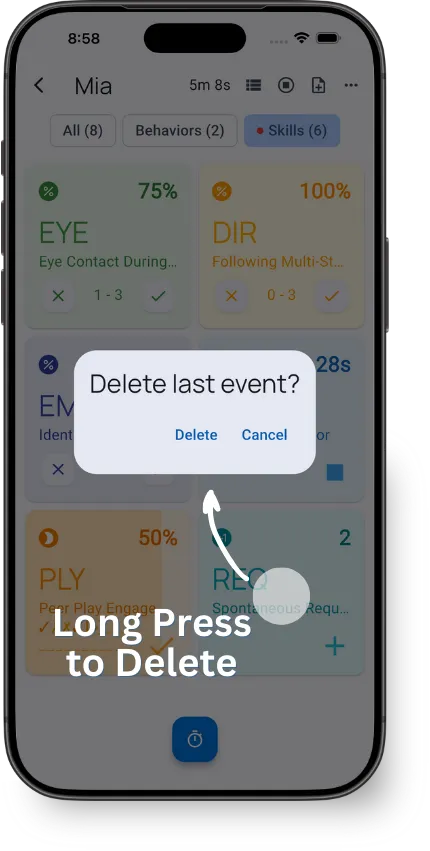
Long-press to undo - Made a mistake? Long-press any tile to delete the last recorded event. No need to leave the session to fix errors.
Tap to record - Each recording method has its own interaction. See Recording Methods for details on each type.
What’s Next?
- Recording Methods - Learn how each data collection method works
- Visual Timer - Use the countdown timer for rewards and breaks
- Session Summary - Review and finalize session data
- Daily Points - Enter and review a school-day point card
Need Help?
Questions about the session interface? Email support@tallyflex.com for assistance.