Managing Client Access
Control which team members can view and edit specific client data.
Control Team Access to Client Data
Teams Plan Feature: Grant, modify, or revoke access for team members on a per-client basis.
Note: This documentation refers to “clients” and “students” interchangeably. Your team settings determine which term appears in the app.
This page is the client-centered workflow. To review one team member and see every client they can access, use Team Member Client Access.
Opening Access Management
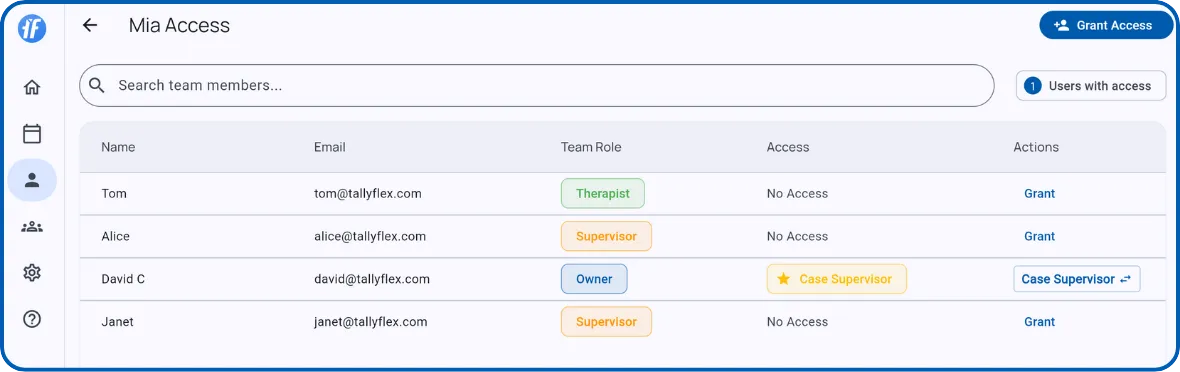
Open the client’s Overview page, tap the gear icon in the top-right corner, then select Manage Access from the menu.
Access Levels
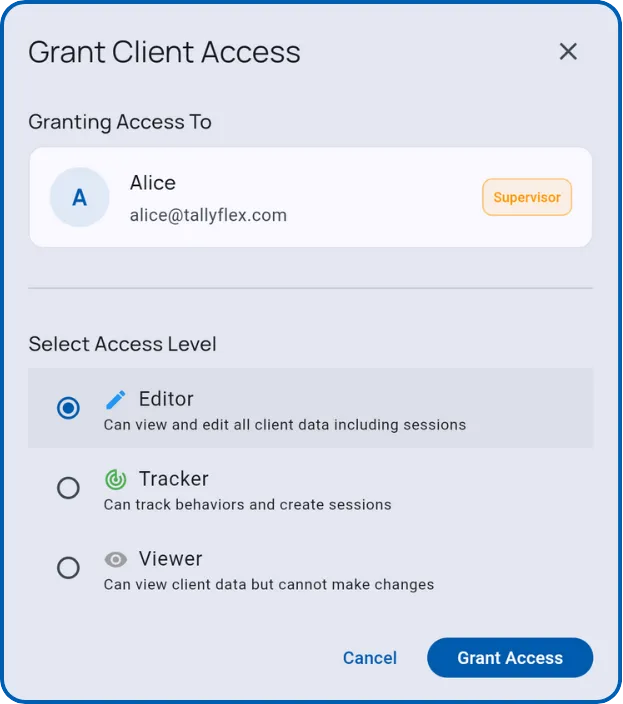
| Level | Team Role | Permissions |
|---|---|---|
| Editor | Supervisors (BCBAs, lead teachers) | Edit behaviors, skills, and session data. Full program modification. |
| Tracker | Therapists (RBTs, paraprofessionals) | Collect data and create sessions. View-only for others’ data. |
| Viewer | Any | Read-only access. Cannot collect or modify data. |
Note: A team member’s role determines available access levels. Editor access requires the Supervisor role.
Granting Access
- Tap Grant Access
- Select a team member
- Choose an access level
- Confirm
For larger teams, use the search bar to filter by name.
Changing Access Levels
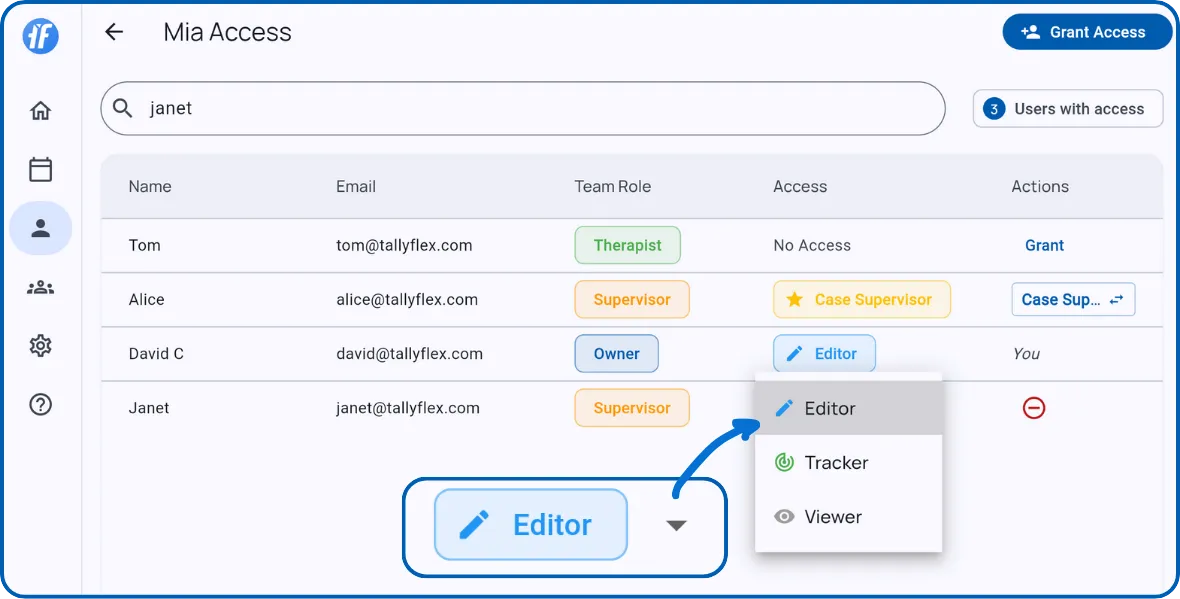
Tap the current access level badge to open a dropdown and select a new level. Changes apply immediately.
Revoking Access
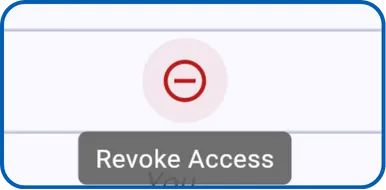
Tap the red minus icon next to a team member and confirm. Access is removed immediately, but their previous data entries remain in the client record.
Case Supervisor
Every client has a Case Supervisor-the team member responsible for overseeing the program. Only Supervisors can hold this role.
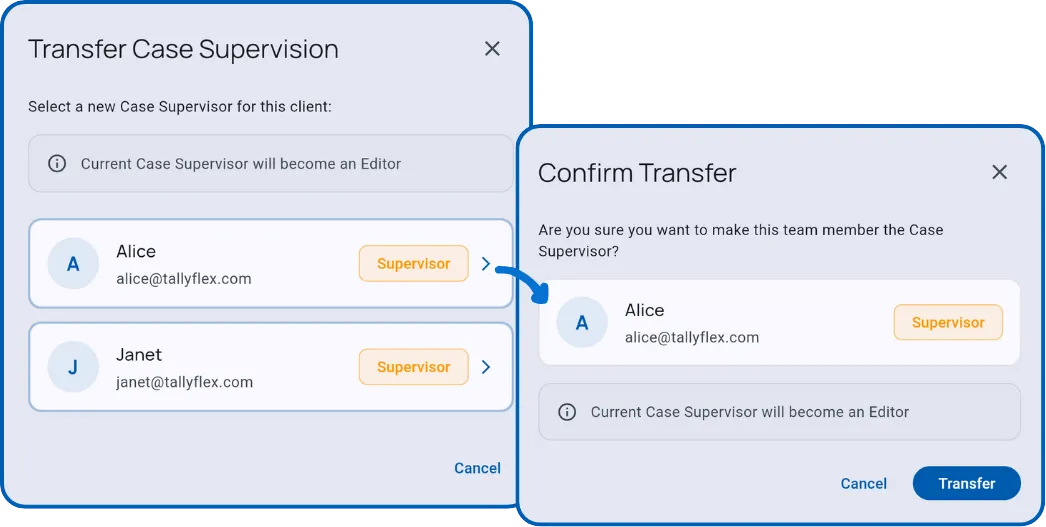
To transfer case supervision:
- Tap Case Supervisor in the Actions column
- Select the new Case Supervisor
- Confirm the transfer
The previous Case Supervisor automatically becomes an Editor, retaining full access to the client.
Tip: When onboarding your team, create clients under your account first, then transfer cases as you bring new Supervisors onboard.
What’s Next?
- Client Overview - View team activity on a client
- Team Member Client Access - Review one member’s client access
- Generate Report - Generate and share clinical reports
- Records - Review completed sessions and Service Records
Need Help?
Questions about access management? Email support@tallyflex.com for assistance.