Using Recording Methods
How to interact with each of TallyFlex's 9 ABA recording method tiles during active therapy sessions.
TallyFlex supports 9 ABA recording methods. Each tile shows different information and responds to taps differently. This guide shows how to interact with each during active sessions.
Need help choosing which method to use? See Choosing a Recording Method.
Want the full decision framework first? Use the Recording Method Finder or read How to Choose the Right ABA Recording Method.
Frequency
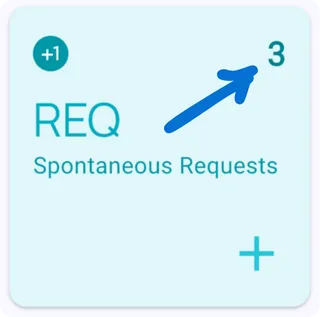
Count behavior occurrences. Tap anywhere on the tile to increment.
Tile shows:
- Count (top-right) - total occurrences this session
- Tracker abbreviation and name
Auto-calculates: Total count, Rate (per minute), Inter-response time (IRT)
Duration
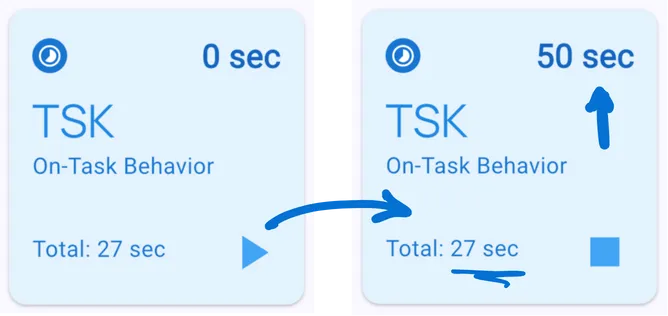
Measure how long a behavior lasts. Tap to start the timer, tap again when behavior ends.
Tile shows:
- Running time (top-right) - current timer if active, or “0” if stopped
- Total recorded (bottom-left) - cumulative duration this session
- Play/Stop button (bottom-right) - indicates current state
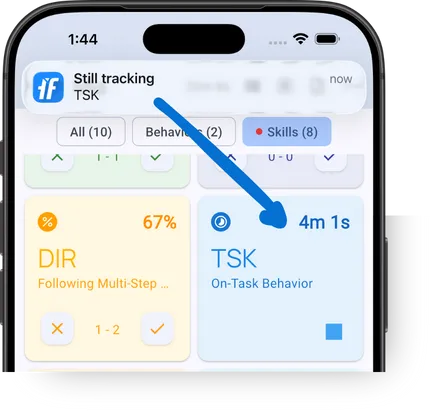
Duration reminders: Enable notifications in Settings to receive periodic alerts when a duration tracker is running. Prevents forgotten timers.
Auto-calculates: Total duration, Average duration, Inter-response time (IRT), Occurrence count
Latency
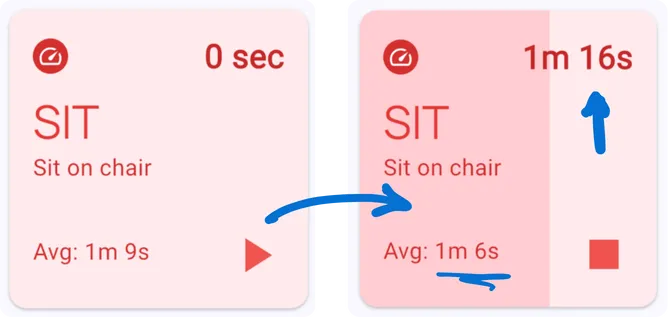
Measure time from instruction to response. Tap when instruction given, tap again when response occurs.
Tile shows:
- Running time (top-right) - current timer
- Average (bottom-left) - mean latency across all occurrences
- Progress fill - visual indicator showing time elapsed toward max latency (if configured)
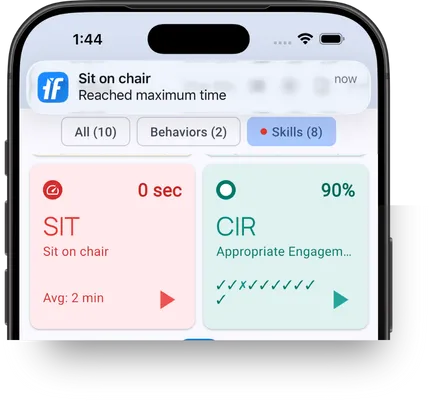
Advanced: If maximum latency is configured, the tile fills with color as time approaches the max. Timer auto-stops at maximum to prevent data outliers.
Auto-calculates: Average latency, Event count, Total duration
Partial Interval
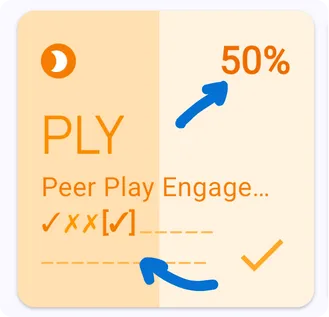
Track whether behavior occurred during each interval. Tap once to start tracking, then tap whenever behavior occurs.
How it works: The first tap starts interval tracking and prepares the planned intervals. Then tap each time the behavior occurs. TallyFlex marks the current interval ✓. If an interval ends without a tap, TallyFlex marks it ✗. Multiple taps in the same interval count as one.
Tile shows:
- Percentage (top-right) - % of intervals with occurrence
- Interval progress - visual sequence showing ✓ (occurred), ✗ (did not occur), and [•] (current interval)
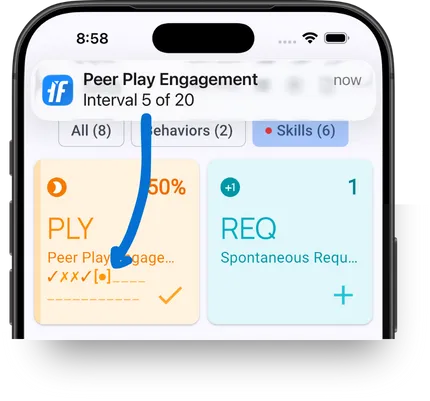
Interval notifications: Enable notifications in Settings to alert when an interval starts. You don’t need to watch the timer.
Auto-calculates: Percentage of ✓ intervals, number of ✓ intervals, Total intervals
You can stop interval recording and continue the remaining planned intervals later without losing completed observations. After those intervals finish, you can start another round and keep the results in the same service record. Use these options only when they match the measurement plan.
Whole Interval
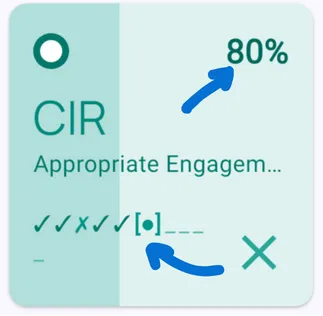
Track whether behavior is sustained throughout each interval. Tap once to start tracking, then tap only when behavior STOPS.
How it works: The first tap starts interval tracking and prepares the planned intervals. TallyFlex advances automatically and marks sustained behavior ✓. You only tap when behavior is interrupted. No manual timers or interval counting are needed.
Tile shows:
- Success rate (top-right) - % of intervals with sustained behavior
- Interval progress - visual sequence showing ✓ (sustained), ✗ (interrupted), and [•] (current)
- Progress fill - current interval fills as time elapses
Read the Whole Interval Guide to see how TallyFlex’s inverse logic reduces cognitive load.
Interval notifications: Enable notifications in Settings to alert when each interval finishes.
Auto-calculates: Success rate (% of ✓ intervals), ✓ intervals (sustained), Total intervals
See Stop, Continue, or Start More Intervals for the shared Partial and Whole Interval workflow.
Percent Correct
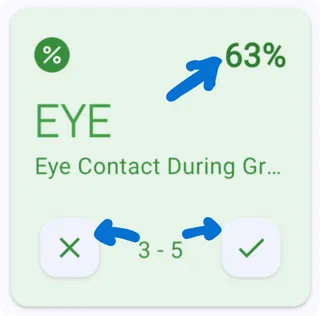
Track correct vs. incorrect responses in trials. Tap ✓ for correct response, ✗ for incorrect response.
Tile shows:
- Percentage (top-right) - accuracy rate
- ✗ button (left) - mark trial incorrect
- Ratio (center) - incorrect vs correct count (e.g., “3 - 5”)
- ✓ button (right) - mark trial correct
Auto-calculates: Accuracy percentage, Correct count, Failed count
Read the Percent Correct with Prompt Levels guide to track what level of support was provided for each trial and define what counts as success.
Task Analysis
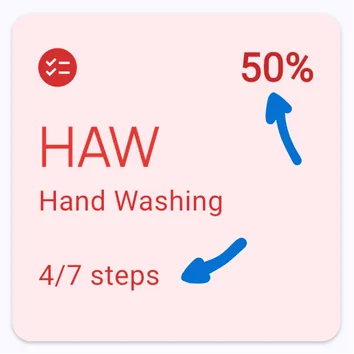
Track multi-step skills with prompt level recording. Tap the tile to expand, then tap prompt level buttons for each step.
Tile shows:
- Percent independent - independence rate so far
- Progress indicator - scored steps / total steps
Expanded view shows:
- Full step list with names
- Current step with prompt level buttons (I, G, V, M, PP, FP, NR)
- Completed steps with prompt level badges
How it works: Tap a prompt level to score the current step. Steps auto-advance after scoring. Tap completed steps to re-score if needed.
Read the full Task Analysis guide for scoring details, or see Task Analysis Setup for configuration, chaining methods, and mastery criteria.
Auto-calculates: Percent independent, prompt distribution, step-by-step trends
Momentary Time Sampling (MTS)
Record whether a behavior is occurring at a specific moment in time at fixed intervals. MTS captures only the instantaneous observation - the observer checks at the exact moment each interval ends and records yes/no.
How it works: Tap once to start interval tracking. At each interval boundary, a full-screen overlay appears with “Occurred” and “Not Occurred” buttons. You have a 15-second response window with a countdown bar. If no response, the overlay auto-dismisses and records “Not Observed.”
Tile shows:
- Percentage (top-right) - % of intervals with behavior observed
- Interval progress - visual sequence showing results for each interval
Key features:
- Full-screen overlay - Appears at each interval so you never miss a prompt
- 15-second response window - Countdown bar shows remaining time
- Auto-dismiss - No response records as “Not Observed,” preventing observation bias
- Card tap fallback - Tap the tracker card as a quick “Occurred” mark
Auto-calculates: Percentage of observed intervals, observed count, total intervals
Read the Momentary Time Sampling guide for when MTS fits better than partial or whole interval recording.
Common Features
Tap and hold on any method to delete the last recorded event if you made a mistake. Works across all methods.
Real-time calculations: All metrics update automatically as you collect data. No manual math required.
Mix and Match
Use different methods for different behaviors on the same client during the same session:
- Hand-raising: Frequency
- Dysregulation episode (defined by your team in the BIP): Duration
- Following Directions: Latency
- Engagement during instruction: Whole Interval
- Matching Pictures: Percent Correct
- Engagement during shared instruction: MTS
All tiles display simultaneously during active sessions.
What’s Next?
- Choosing a Recording Method - Learn which method to use for each behavior
- Recording Method Finder - Answer three questions and get a method recommendation
- How to Choose the Right ABA Recording Method - Full decision framework with examples
- Whole Interval Guide - Deep dive on inverse logic and error prevention
- Active Session Interface - Full session interface guide
Need Help?
Questions about recording methods? Email support@tallyflex.com for assistance.