Session Summary
Review session data, edit counts, adjust session times, and add clinical notes after completing a session.
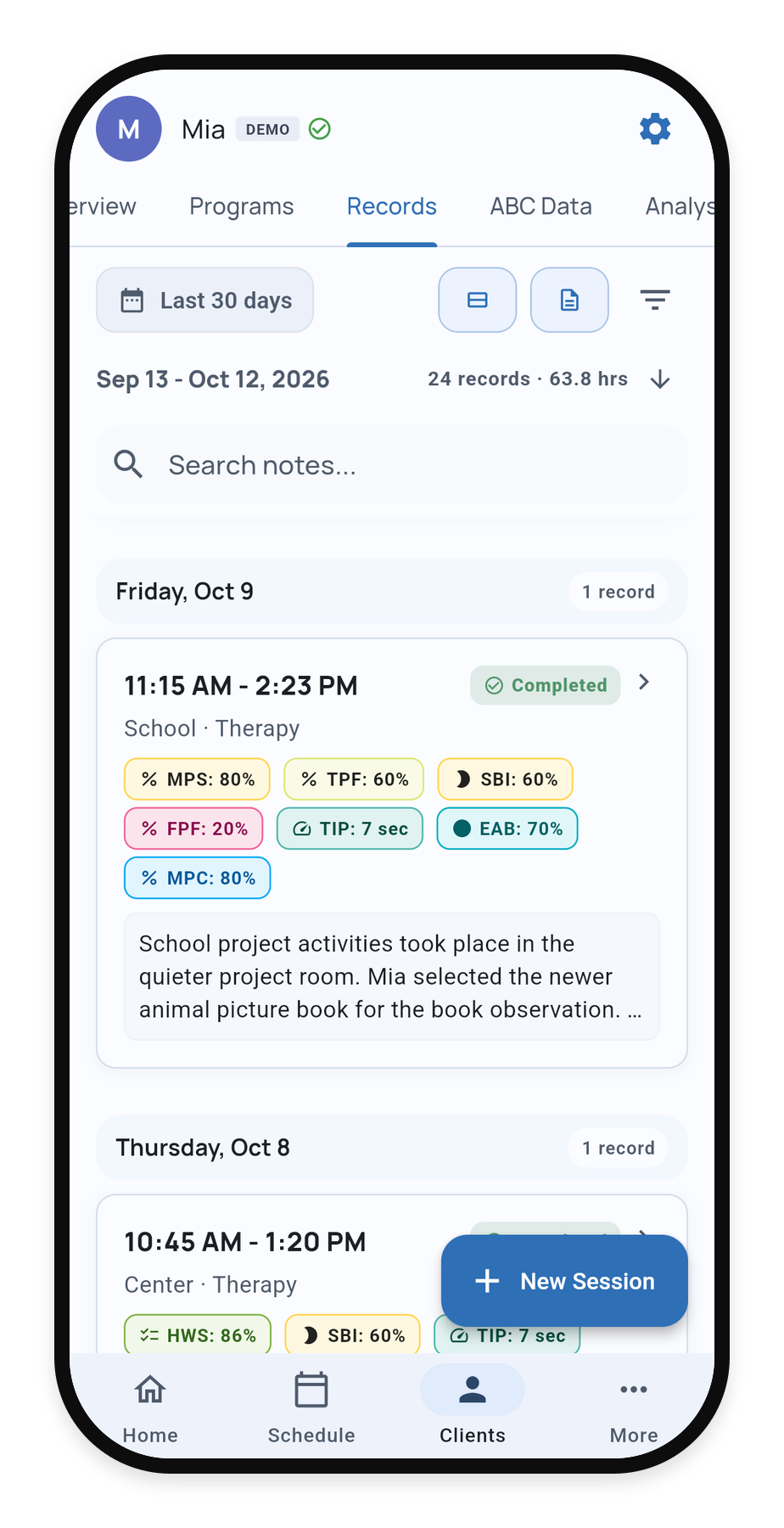
After stopping a session, review the visit’s Service Record. You can return to it later from the client’s Records tab. Offline changes still need to sync after reconnecting.
1. Find the visit
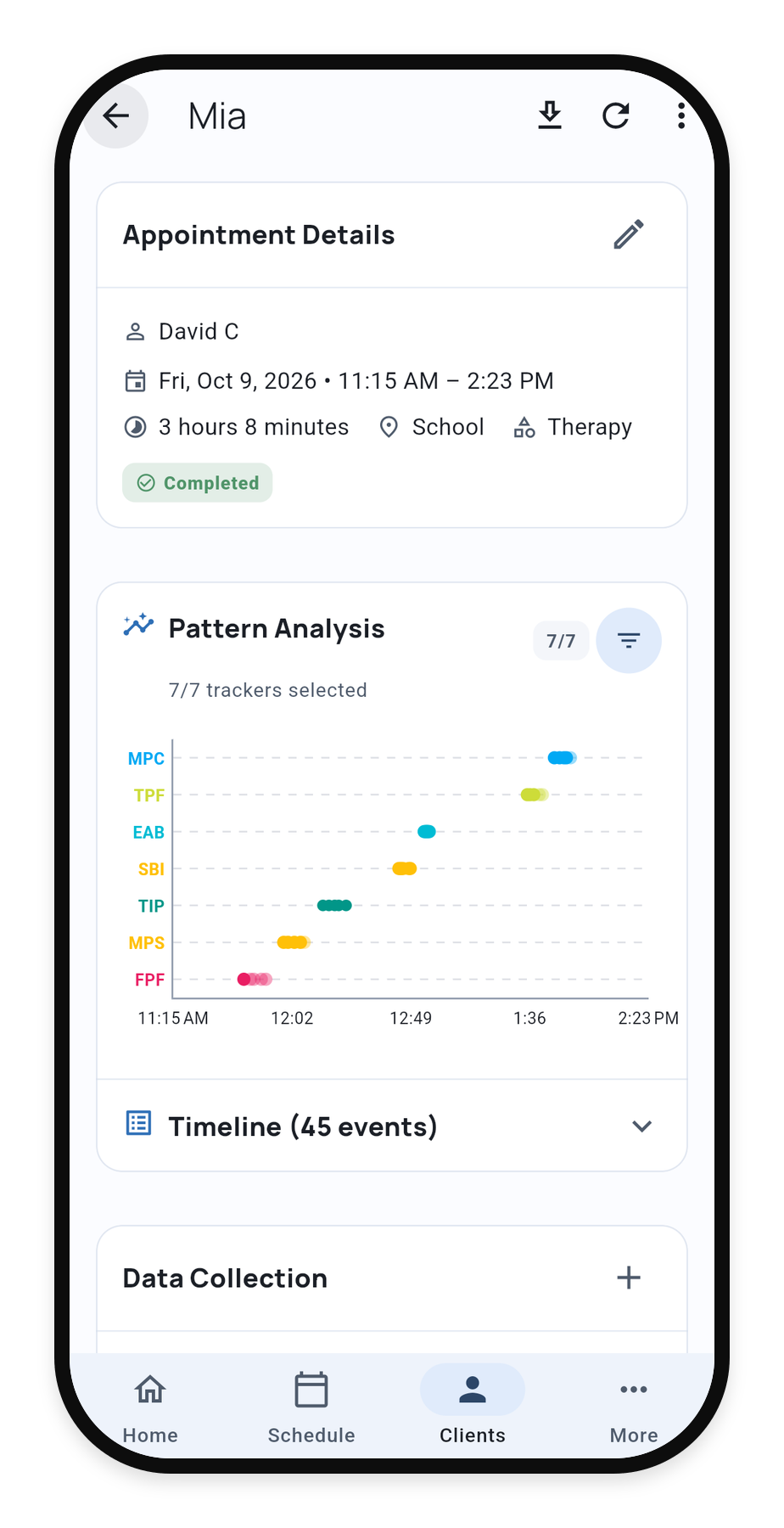
2. Review recorded data
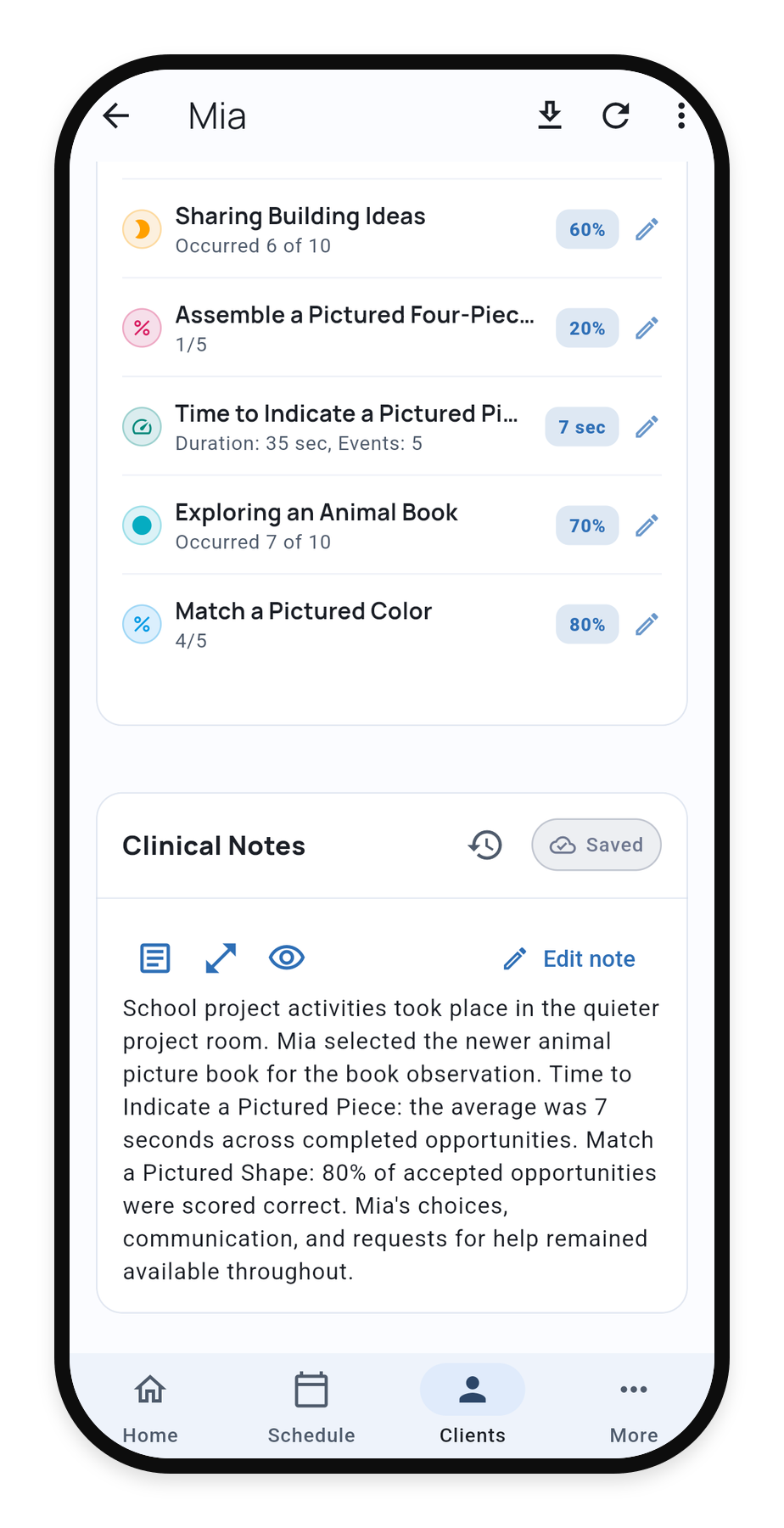
3. Review the note
Review and correct the data
In Data Collection, select a target under Data Summary to inspect its recorded values and make corrections when your access allows. The timeline helps you check when observations were recorded.
For observations entered after a visit, use Edit observations and give a correction reason.
If the visit times are inaccurate, choose Edit appointment in Appointment Details. Correct the actual start or end time; a changed observation duration can affect rate-based results.
You can also add the visit’s Client Mood rating under Data Collection when editing is available.
Finish the note and share
Use Clinical Notes for the final visit narrative, with in-session Quick Notes as reference. Write Clinical Notes explains templates, session context, and PDF preview.
Use the top-bar download icon to export the Service Record. Choose PDF for a formatted document, or Excel or CSV for data. Signed records have their own correction and review steps.
For an accidental or duplicate record, see Delete or Clear a Service Record before removing it.