Managing Team Members
Change staff roles and deactivate accounts when team members leave.
Change a member’s role
Owners and Administrators manage staff in Team Management, opened from the team icon or More → Team on a phone.
Find the member, open their three-dot menu, and choose Change Role. Select the role they need and confirm with Update role.
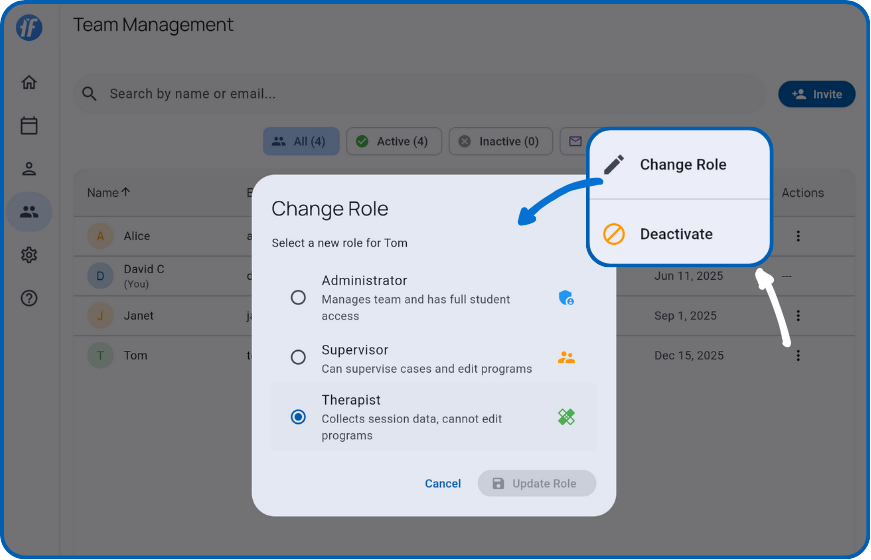
A role change can remove or expand access. Changing a Supervisor to Therapist removes their ability to edit programs; arrange coverage for their cases before making that change. See Roles and Permissions when choosing the new role.
Deactivate someone who leaves
Transfer any Case Supervisor responsibilities first. In the member’s three-dot menu, choose Deactivate and confirm.
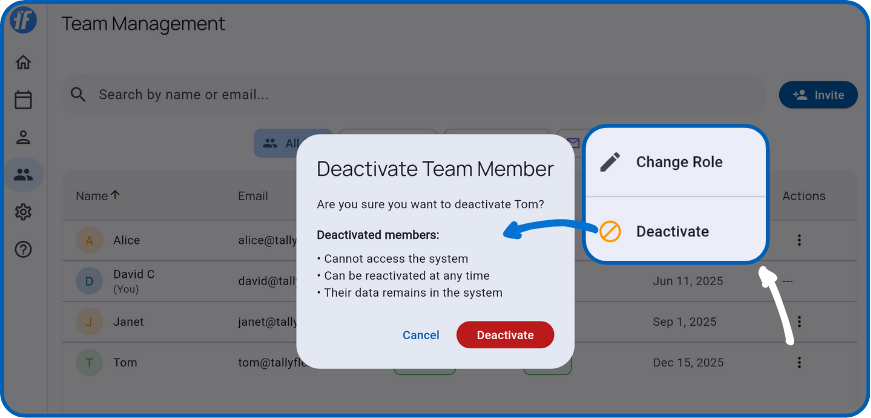
Deactivation blocks access while preserving their previous data entries. You cannot deactivate yourself or the team Owner.
Reactivate a returning member
Review the inactive member’s previous role and client assignments before restoring access. Choose Reactivate from their action menu and confirm. Reactivation restores their previous role and permissions and requires an active subscription.
Use Team Member Client Access to review assignments, or Managing Client Access to transfer a case.