Review and Finalize Session Data
Review session data, adjust counts, and add clinical notes. Auto-saved and synced in real-time.
2 min Updated December 9, 2025
Review Your Session
After stopping a session, you’ll see the Session Summary screen. Your session auto-saves and syncs in real-time-even offline-so this screen lets you review and make any final adjustments.
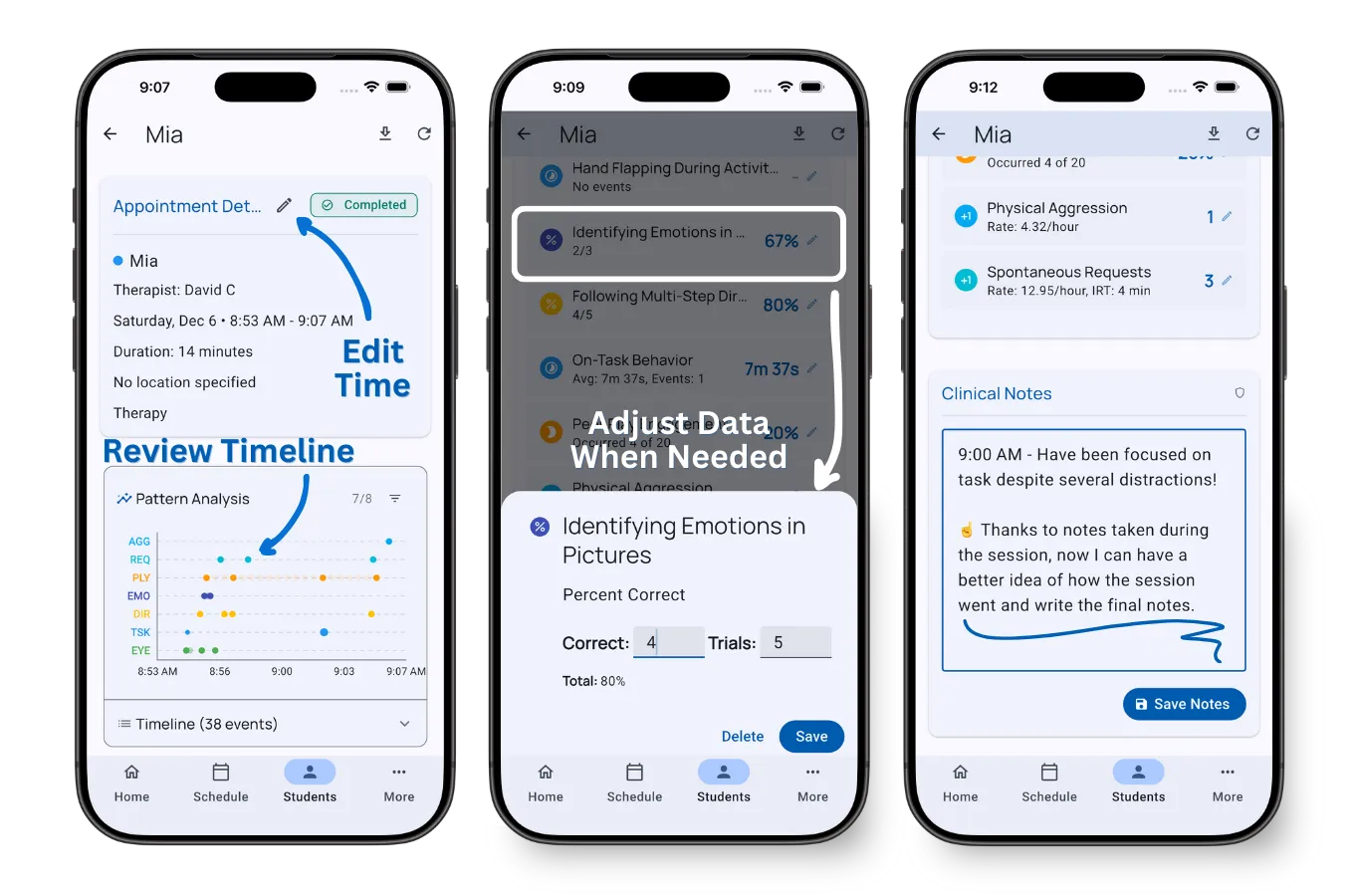
What You Can Review
The session summary automatically displays:
Data Review
- Review totals - See counts and calculated rates for each target
- Calculated metrics - View automatically calculated rates, percentages, or durations
- Timeline - Review when each behavior was recorded throughout the session
Session Details
- Session times - View the start and end times
- Mood rating - The student’s overall mood during the session (if set)
- Notes - Any observations captured during the session
Making Adjustments
If you need to make changes after reviewing:
Adjust Data Counts
- Tap any target to edit its count or data
- Modify values if you missed recording any occurrences
- Tap Save to save your changes
Edit Session Times
- Tap Edit Time to adjust start/end times
- Useful if you forgot to start/stop the timer on time
Add or Edit Notes
- Tap Clinical Notes to add or edit your observations
- Tap Save Notes to save your changes
- Notes are not auto-saved as you type
As you collect more data over time, you’ll see trends and visualizations in the student’s dashboard.
What’s Next?
Now that you’ve completed your first session:
- Dashboard - Explore the student’s dashboard
- Active Session Tools - Learn about tools available during sessions
- Recording Methods - Deep dive into all 9 ABA data collection methods
Need Help?
Questions about session summaries? Email support@tallyflex.com for assistance.