Task Analysis
How to score multi-step skills, including multiple chronological runs, during an active session.
Record each step of a multi-step skill with its observed response or prompt level. Set up the target first, including its steps, prompt definitions and assessment mode. Task Analysis is available on Solo and Teams.
Score a run
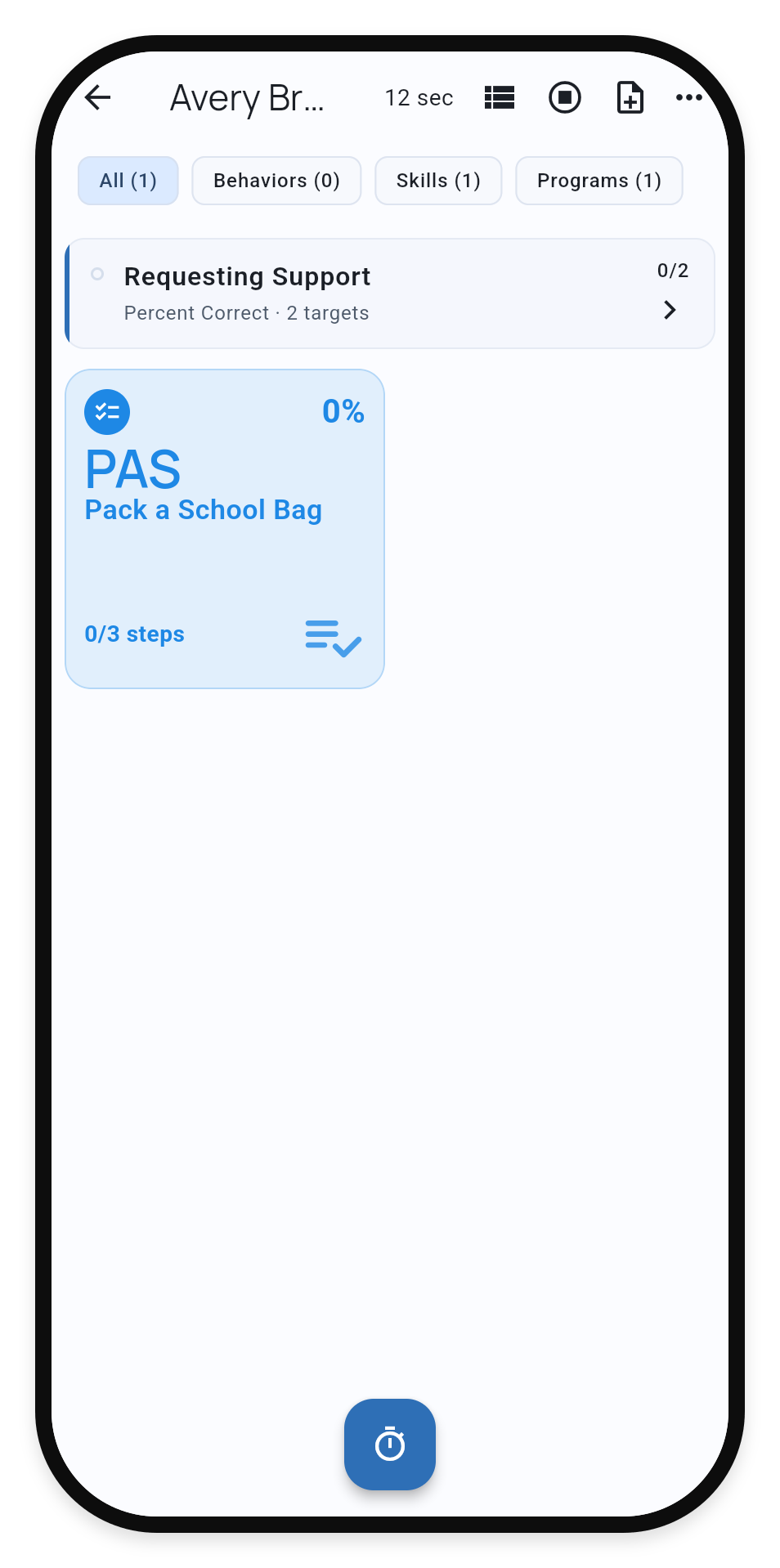
Tap the Task Analysis tile during a session to open its steps. Follow the prompting or assessment procedure in the learner’s plan, then choose the response or prompt level used for the current step. TallyFlex advances after scoring.
1. Open the task
2. Score each step
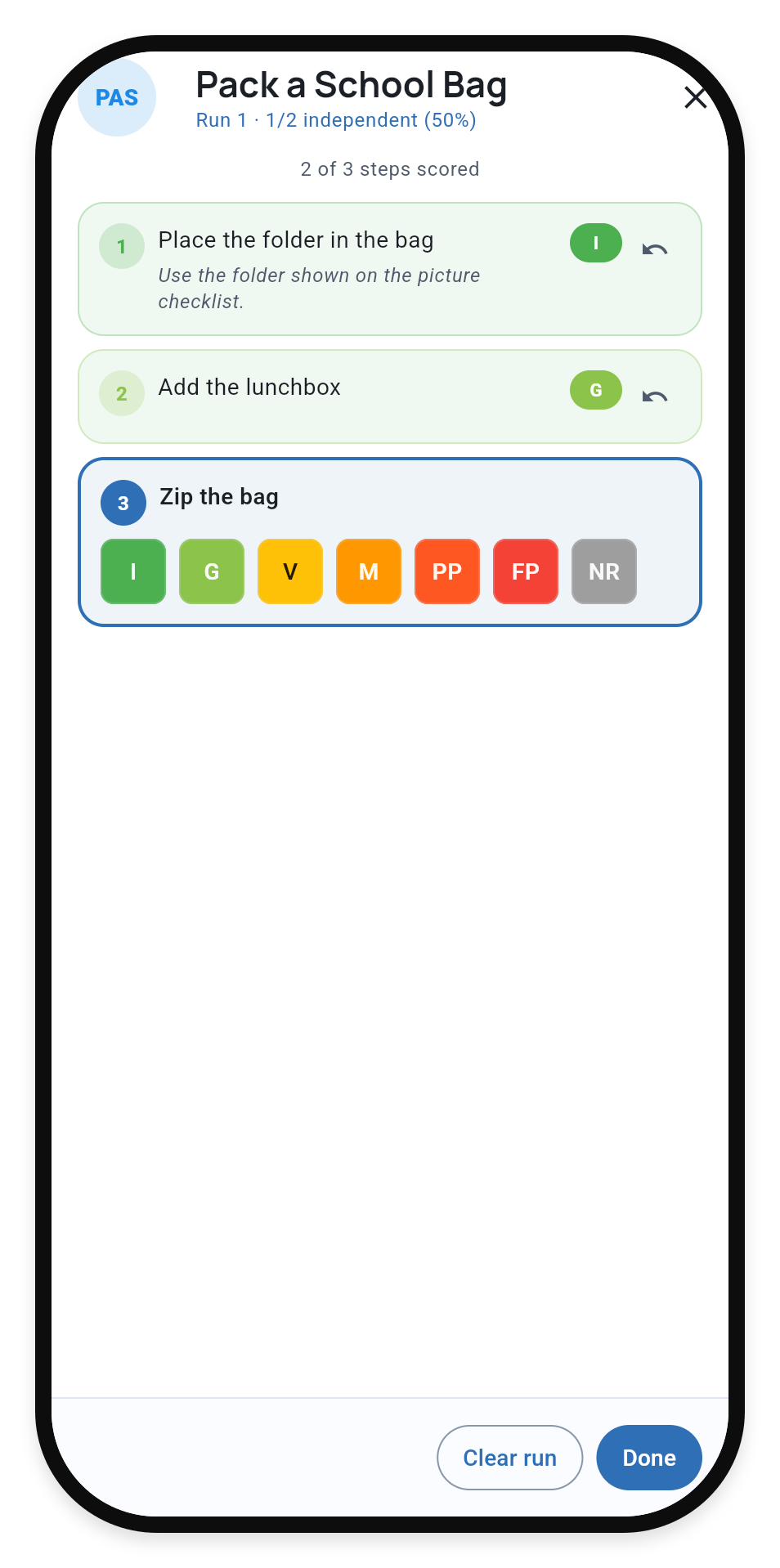
NR records a scored No Response. Leave a step blank when it has not been scored; blank and No Response have different meanings. To correct a scored step, select it and choose the correct response or prompt level.
The target’s assessment mode determines when the run is complete:
- Multiple Opportunity: score all steps.
- Single Opportunity: the run stops after the first non-independent response.
Repeat the task in the same session
After completing the current run, choose Start another run for the next opportunity. You can keep up to five chronological runs for one target in a session. Use the numbered run chips to review or correct a run.
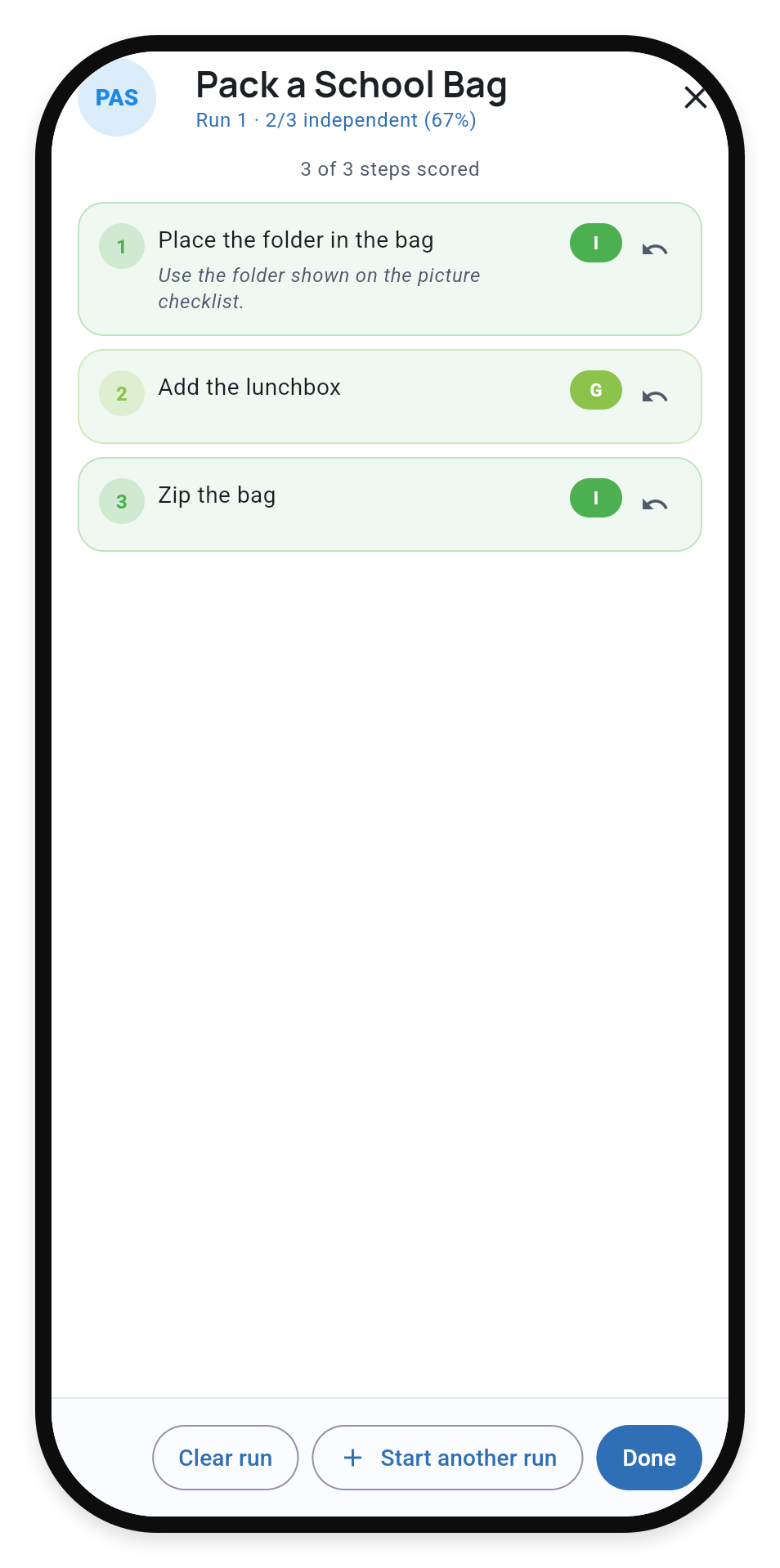
Done closes the scoring view and preserves scored steps, including an unfinished run. A completely blank draft run is not saved. Clear run removes the selected run after confirmation.
TallyFlex combines scored responses across runs into one session result for graphs and objective progress. Individual runs remain available for step-by-step review.
Correct a completed session
Open the Service Record and choose Edit Tracker for the Task Analysis target. Select a saved run, correct its scores, and save before switching runs.
Completed-session corrections cannot add, remove or reorder runs. Every saved run must retain at least one scored response.
Related guides
- Task Analysis Setup - Configure steps, prompts, chaining and assessment mode.
- Task Analysis Reports - Read pooled results and individual runs.
- Records and Service Records - Review and correct eligible completed-session data.