Explore the Demo Client
Meet Mia - a pre-populated demo client with realistic ABA data to help you explore TallyFlex instantly.
Meet Mia (Demo)
When you create your account, TallyFlex generates a demo client called Mia (Demo) with 8 weeks of realistic ABA therapy data. No setup required - you can start exploring immediately.
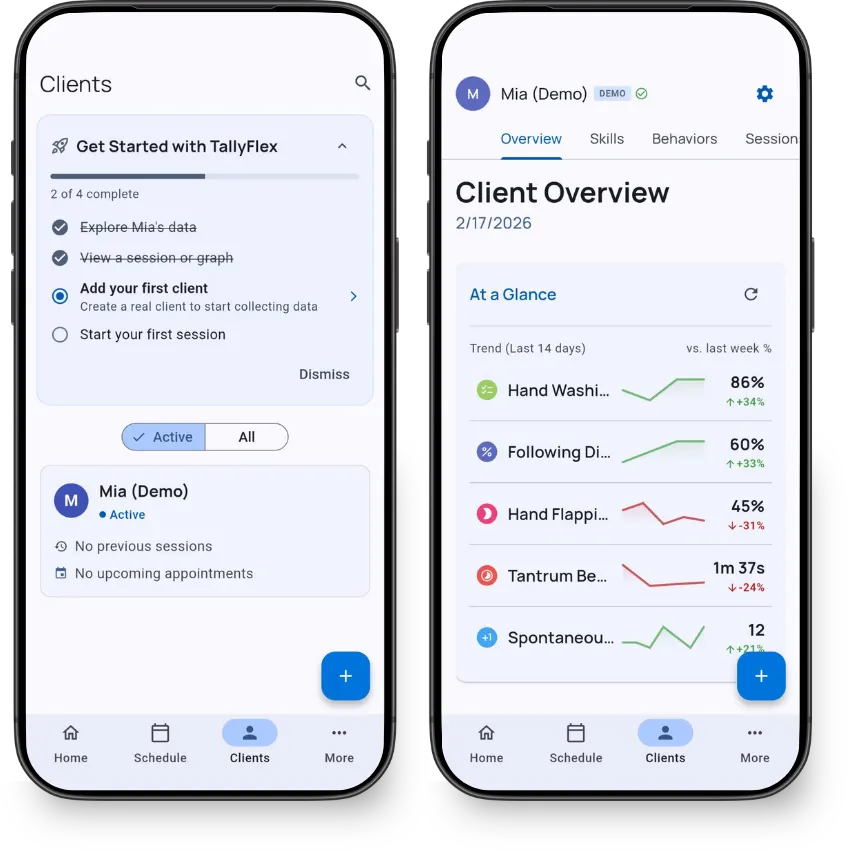
Mia includes:
- 9 trackers covering every recording method (frequency, duration, latency, interval, percent correct, task analysis, and more)
- ~32 sessions of data across 8 weeks
- ABC data with real behavioral function examples
- Progress graphs showing clinically varied trends
Mia is a training client - perfect for learning TallyFlex before entering real data.
Onboarding Checklist
Your dashboard shows a 4-step checklist that guides you through key features:
- Explore Mia’s data - Browse trackers, graphs, and records
- View a session or graph - See how TallyFlex visualizes progress
- Add your first client - Create a real client to start collecting data
- Start your first session - Run your first data collection session
Complete each step to learn how TallyFlex works. The checklist syncs across devices, so you can pick up where you left off on any platform.
Preview Premium Features
Free users can try premium features on Mia’s data:
- Progress reports (PDF with graphs and summaries, plus Excel and CSV data exports)
- Task analysis reports with heat maps
- Visual Session Timeline to identify patterns across sessions
- Programs with structured phases and auto-progression
- Template Library with 100+ curated templates
You can also clone targets and programs from Mia to your real clients using Cross-Client Copy - a quick way to get started with proven configurations.
Managing the Demo Client
- Refresh - Tap ⚙️ on Mia’s page, then Refresh Demo Data to start fresh (once every 24 hours)
- Hide - Same menu, tap Hide Demo Client when you no longer need it
- Restore - Tap Restore Demo Client at the bottom of your clients page to bring Mia back anytime
What’s Next?
Ready to start with your own data:
- Add Your First Client or Student - Create a real client profile
- Start a Session - Begin collecting data
- Recording Methods - Learn all recording methods in detail
Need Help?
Questions about the demo client? Email support@tallyflex.com for assistance.