Observation Settings
Use settings such as home, school, telehealth, or custom locations to show the service setting for each session, choose available behaviors and skills, and filter graphs and reports.
Track Session Settings
Observation settings identify the service setting for a session: Center, Home, School, Community, Telehealth, Other, or a setting your team adds. Use settings when the same client receives services in more than one setting and you want sessions, graphs, and reports to show that setting clearly.
Note: This documentation uses “client.” Your terminology setting may show “student” in the app.
Settings are optional. If a session does not need a setting, leave it as No setting.
Set Team or Personal Defaults
Team owners and admins manage shared defaults from Team Management > Defaults. Solo users manage their personal client defaults from Settings. Free users can use the built-in defaults, but custom defaults require an upgraded plan.
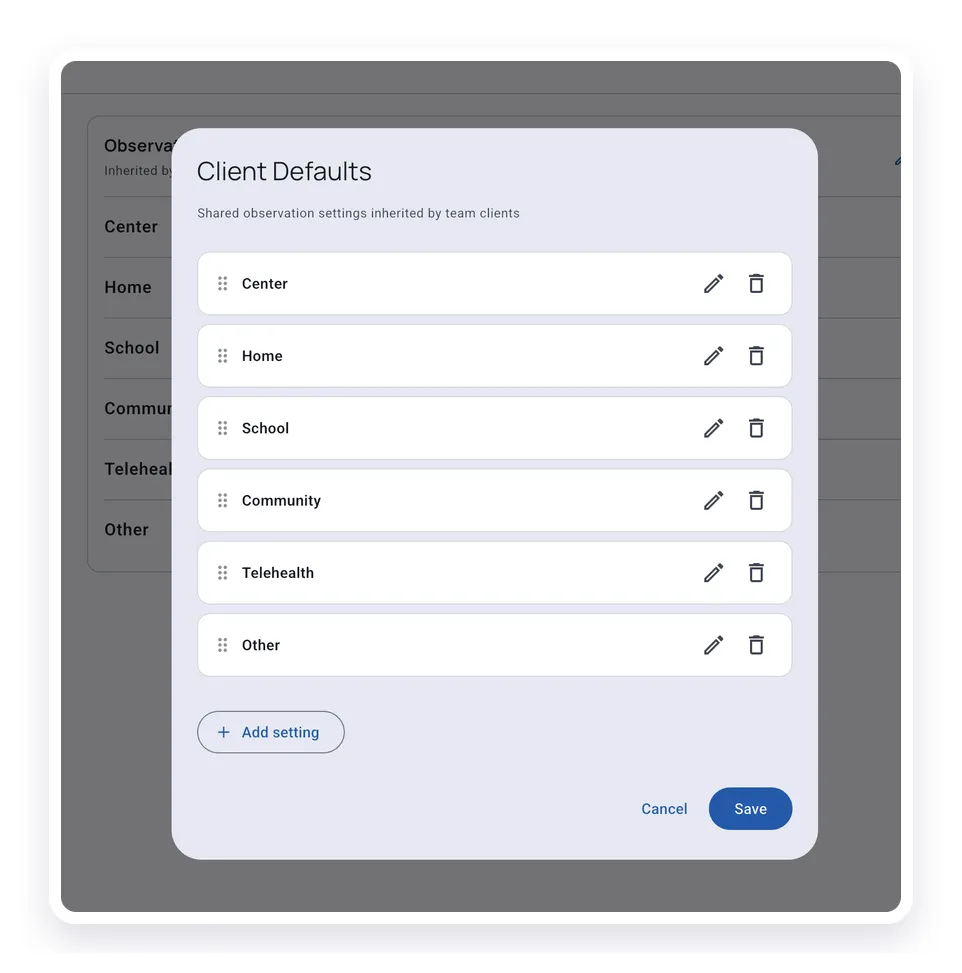
Defaults become the starting list for each client. The built-in defaults are:
- Center
- Home
- School
- Community
- Telehealth
- Other
You can add custom settings, rename settings, reorder the list, or remove settings you do not use.
Customize Settings for One Client
Open the client, tap the gear icon, choose Edit Client, then open the Settings area. Client settings start from your shared defaults, then let you choose what applies to this client.
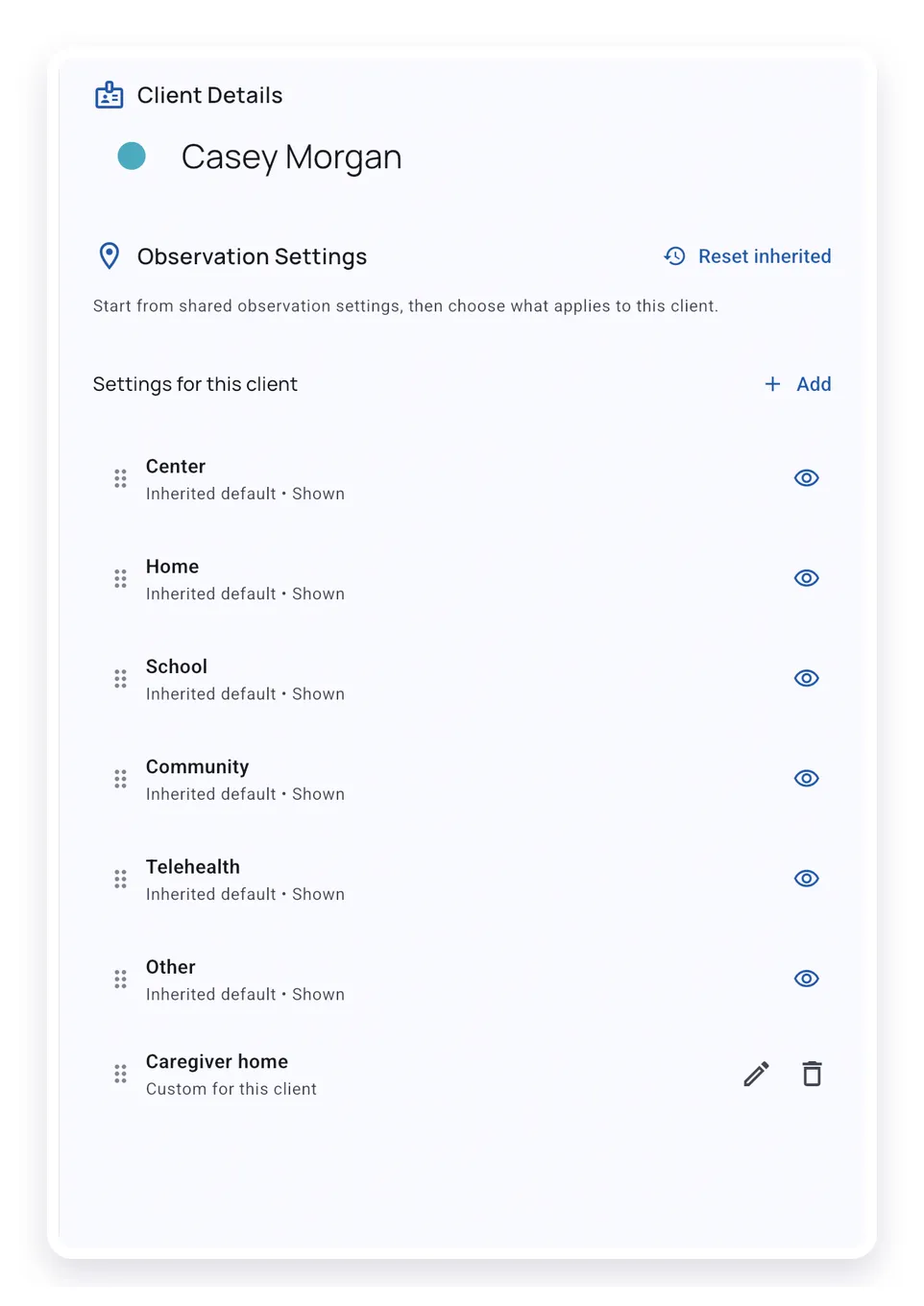
For each client, you can adjust the shared list without changing it for everyone:
- Settings from the shared defaults can be shown, hidden, renamed, or reordered for this client.
- Custom client settings apply only to this client.
- New shared defaults appear for existing clients unless that client hides them.
- Reset inherited restores the client back to the shared default list.
Use this when a client has a unique service setting, such as a caregiver home, community program, or district-specific site name, without changing every other client.
Limit Behaviors and Skills by Setting
When editing a behavior or skill, use Availability to decide where it should appear. All settings keeps it available everywhere. Selecting specific settings keeps it available only when the session uses one of those settings.
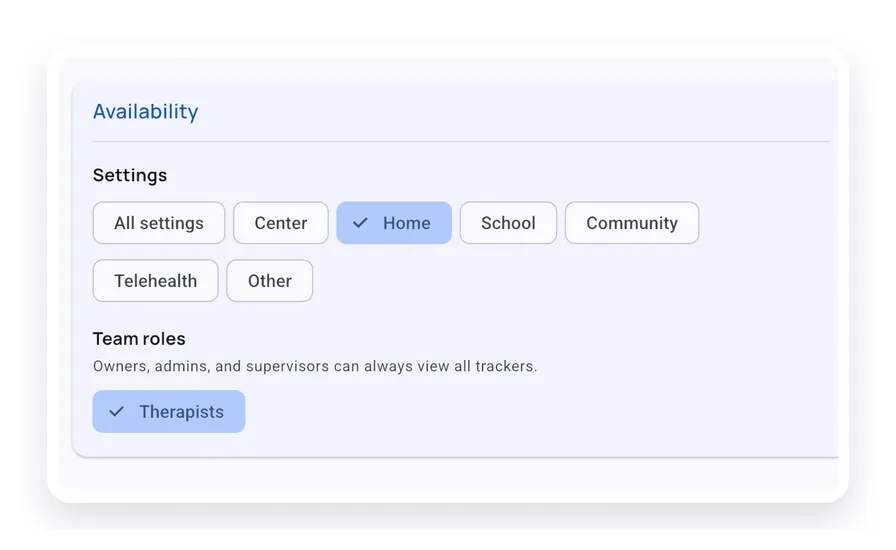
For Teams, availability can also include staff roles. Owners, admins, and supervisors can always view behaviors and skills. Therapists see a behavior or skill when it is available for their role.
Use availability when a target only makes sense in one environment, such as a school-only transition skill or a home-only routine.
Choose a Setting Before Starting a Session
When you start a standalone session, choose the session setting before tapping Start session. TallyFlex filters the behavior and skill list immediately based on that setting.
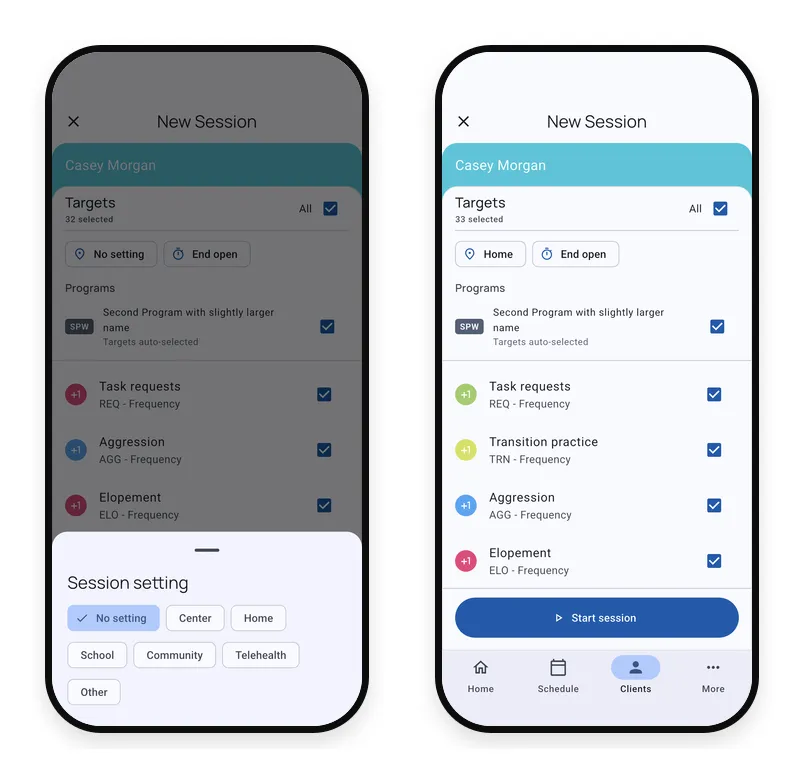
Sessions started from an appointment use the appointment setting. Completed sessions keep the setting selected when the session started, so later default changes do not change past session records.
Compare Settings in Graphs
Open a behavior or skill graph and choose Session when you want to compare settings. TallyFlex groups the graph by setting and shows a legend below the chart. Tap a legend item to show only that setting, tap another setting to add it back, or tap All to reset the comparison.
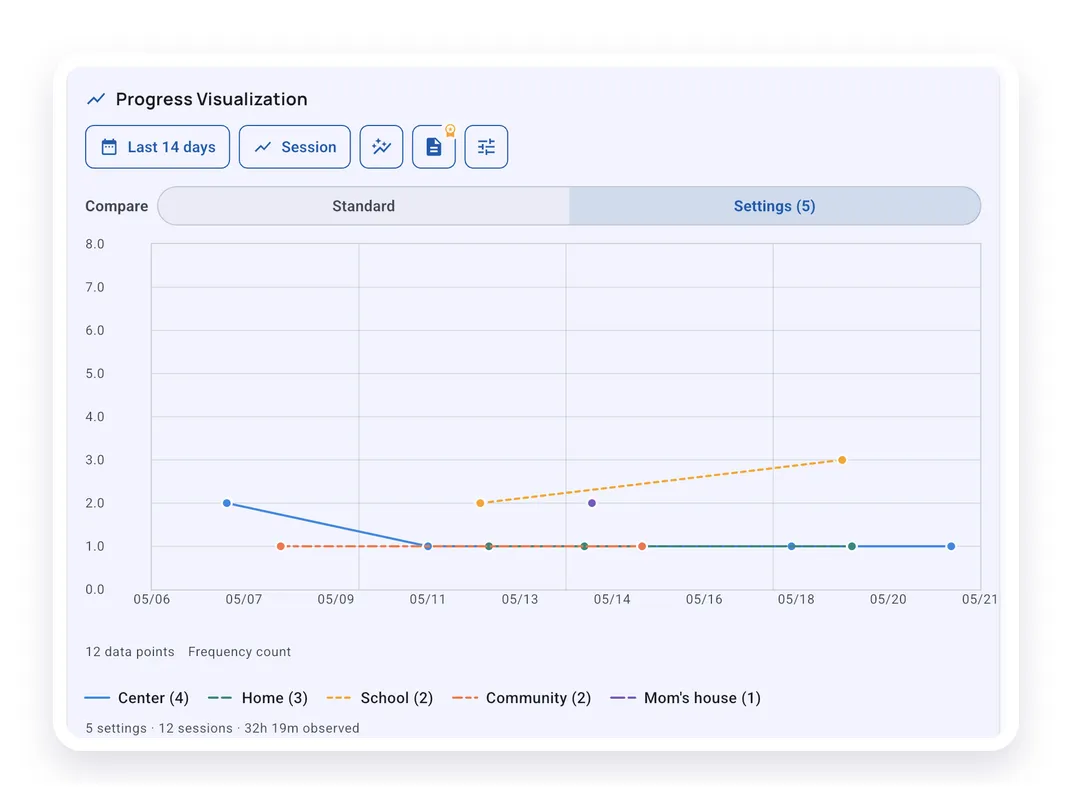
Setting and staff comparisons are available when the graph shows individual sessions. Daily, weekly, and monthly views continue to show one combined trend. When the graph is separated by setting or staff, combined summary statistics are hidden because they no longer match one line on the chart.
If your team data includes more than one staff member, a Staff comparison can appear as well. Staff comparison stays hidden when only one staff member has data for the selected behavior or skill.
Filter Reports by Setting
Detailed data reports can be filtered by setting. Choose All settings for the combined report, or choose a specific setting when you need a setting-specific PDF, Excel, or CSV export.
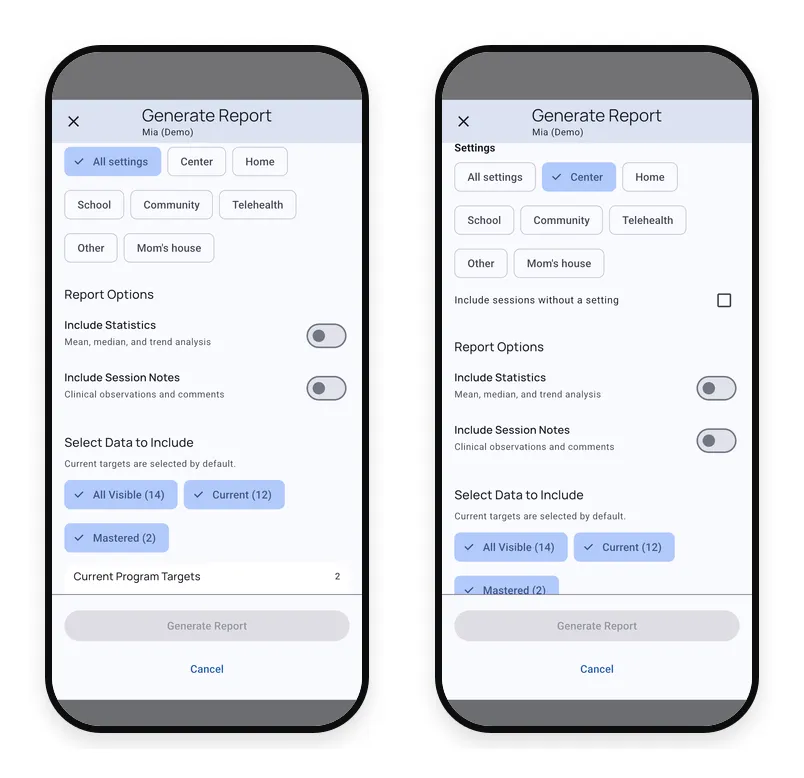
When a specific setting is selected, you can choose whether to include sessions without a setting. Team reports can also show staff filters when the selected data has more than one staff member.
What’s Next?
- Start Your First Data Collection Session - Choose a setting before starting data collection
- Programs, Skills & Behaviors - Review and edit the behaviors and skills affected by availability
- Working with Graphs - Customize graph views and compare data by setting or staff
- Generate Report - Export reports for all settings or one setting
- Team Roles and Permissions - Understand team roles and client access
Need Help?
Questions about observation settings? Email support@tallyflex.com for assistance.