Records
Find appointment records, review session data and notes, and open the Service Record for each visit.
Use Records to find a client’s appointments, review data and notes, and see what still needs a signature or review.
This page uses client for both clients and students. Your terminology setting determines which term appears in the app.
Find Records
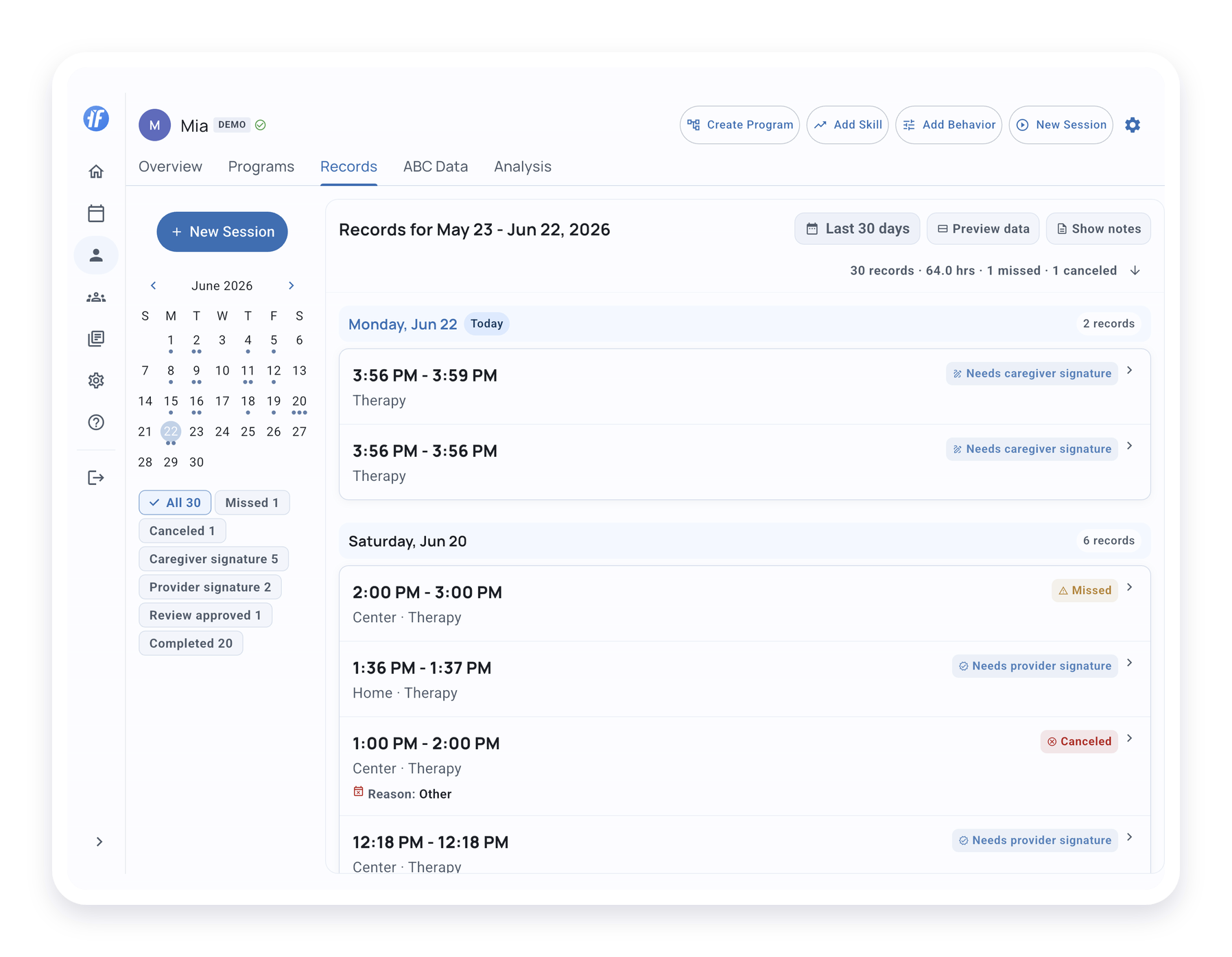
Open a client profile and select Records.
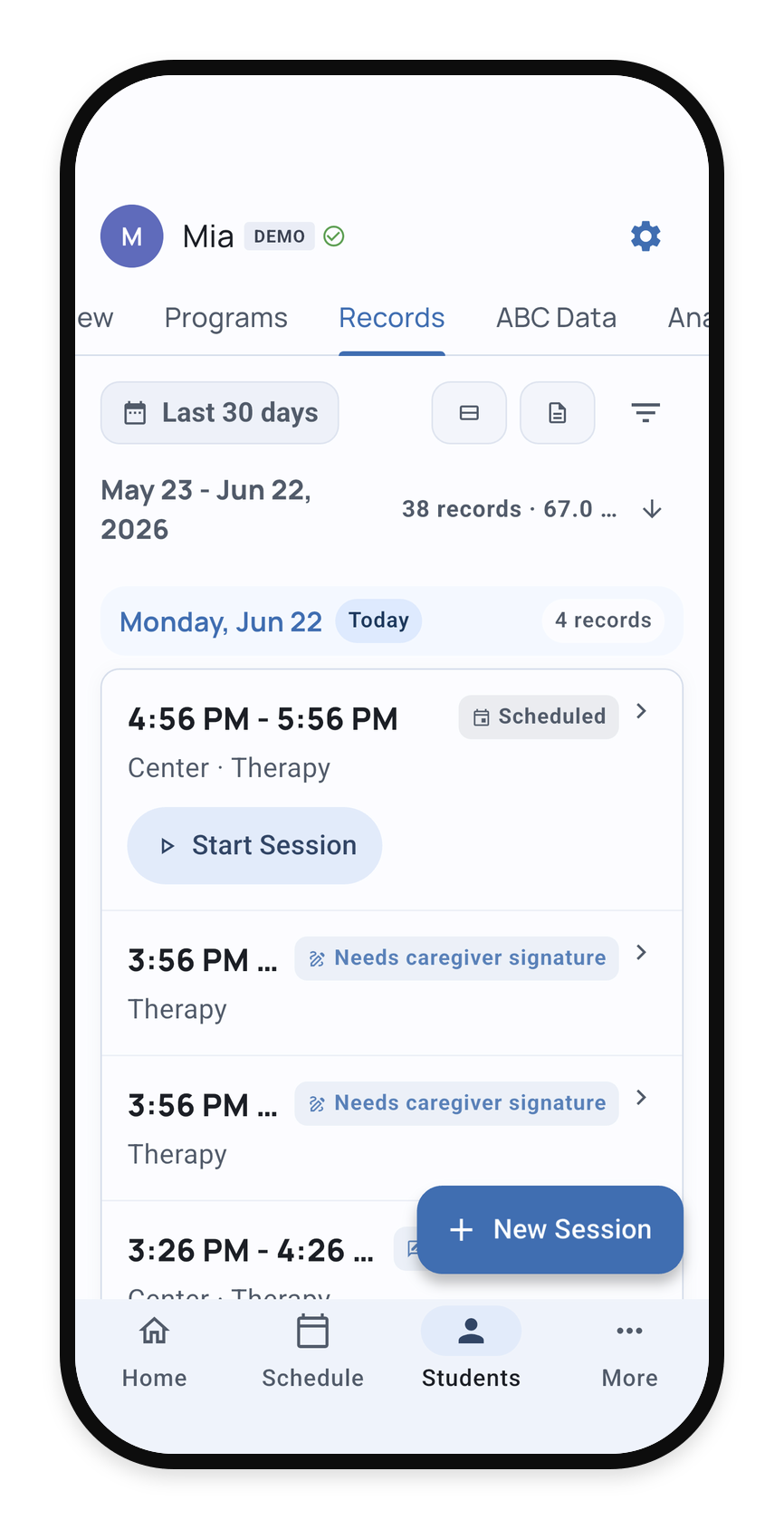
Use the date range at the top to choose which records you want to review. On larger screens, the calendar rail helps you move through days quickly. On phones, the same controls are arranged in a compact layout.
Use Filters and Search
Records can be filtered by status so you can focus on what needs attention.
Common filters include completed, ongoing, missed, canceled, needs outcome, and signature or review states when signed service records are enabled.
Turn on Preview data when you want recorded measurements to appear in the list. Turn on Show notes when you want note previews and note search for the selected range.
Understand Record States
Each row shows the current state of that appointment or service record.
- Scheduled - the appointment is on the schedule and has not been marked ongoing or completed
- Ongoing - a linked session is still active
- Completed - the record is ready for review
- Missed - the appointment was not completed
- Canceled - the appointment was canceled
- Needs outcome - the appointment happened in the past and needs a final outcome or note
- Needs caregiver signature, Needs signature, or Ready for review - the signed record workflow is waiting on the next step
The row state helps you decide whether to open the record, return to the active session, add notes, or complete a signature step.
Open a Service Record
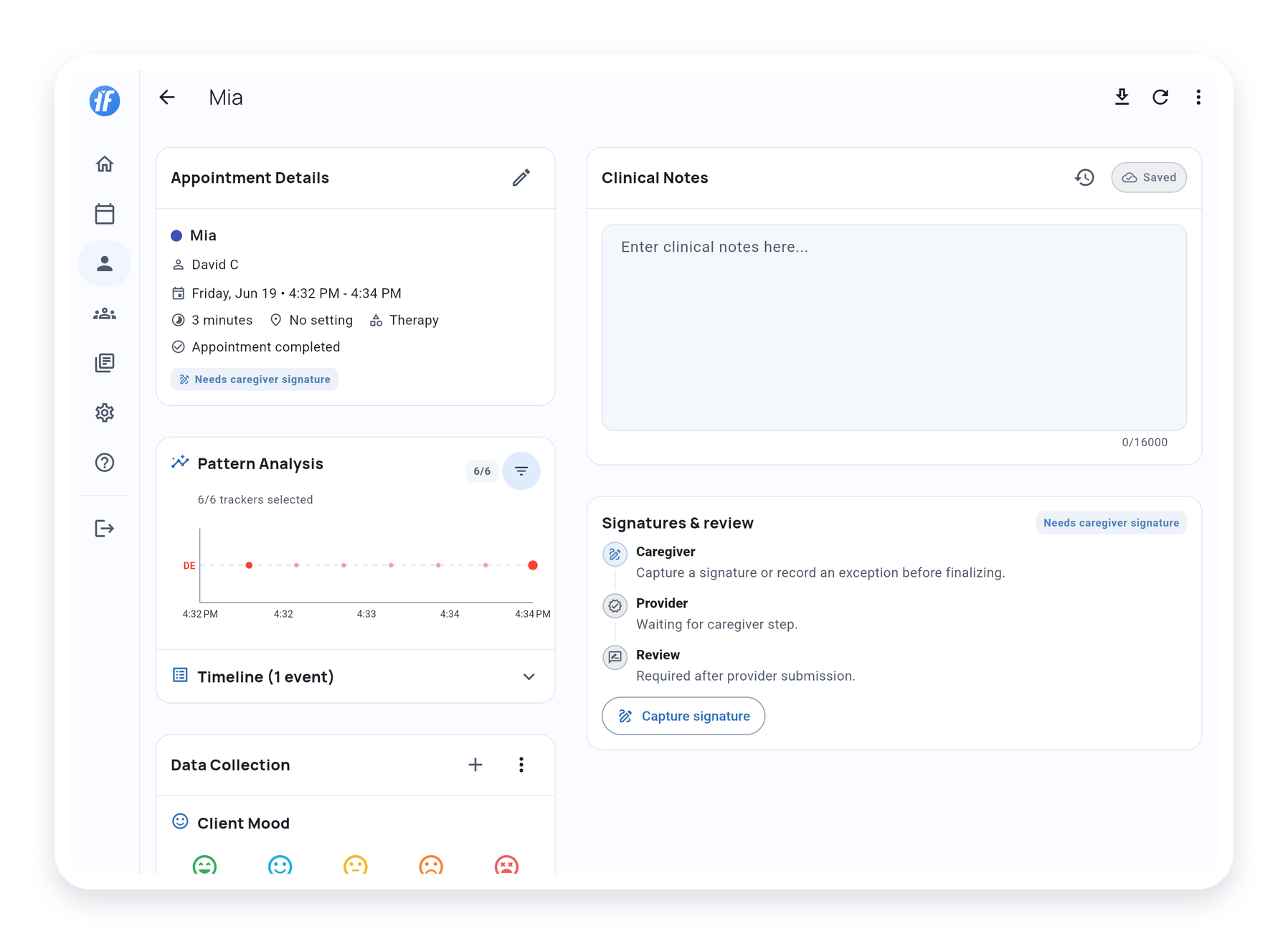
Select a record to open the Service Record.
Review the visit’s data and notes, export a report, or complete any signature and review steps. If a session is still active, you can return to data collection.
For a visit that took place without a live session, choose Record observation in Data Collection. See Document a past appointment to enter observations or use data you already recorded.
Records and Schedule Work Together
Use Schedule to plan appointments and start sessions.
Use Records to review the client history after appointments are scheduled, completed, missed, canceled, or documented.
Completed appointments can also show View Record from the schedule details screen when you are working from the calendar.
Use records, notes, and exports according to your organization’s or district’s sharing process.
What’s Next?
- Signed Service Records - Complete caregiver acknowledgement, provider signature, and team review
- Delete or Clear a Service Record - Remove accidental or duplicate records
- Session Summary - Review session data after collection
- Manage & Start Sessions - Start sessions from appointments
Need Help?
Questions about records? Email support@tallyflex.com for assistance. When emailing support, describe the setup without screenshots, exports, signed PDFs, caregiver details, signatures, student names, exact IEP or treatment-plan text, or other identifying details.