Team Member Client Access
Review and adjust which clients each team member can access from Team Management.
Requires: Owner or Admin role
Use Team Management when you want to check one staff member and see every client they can access. This is the fastest way to review a person’s caseload after they join your team or when their responsibilities change.
Note: This documentation refers to “clients” and “students” interchangeably. Your team settings determine which term appears in the app.
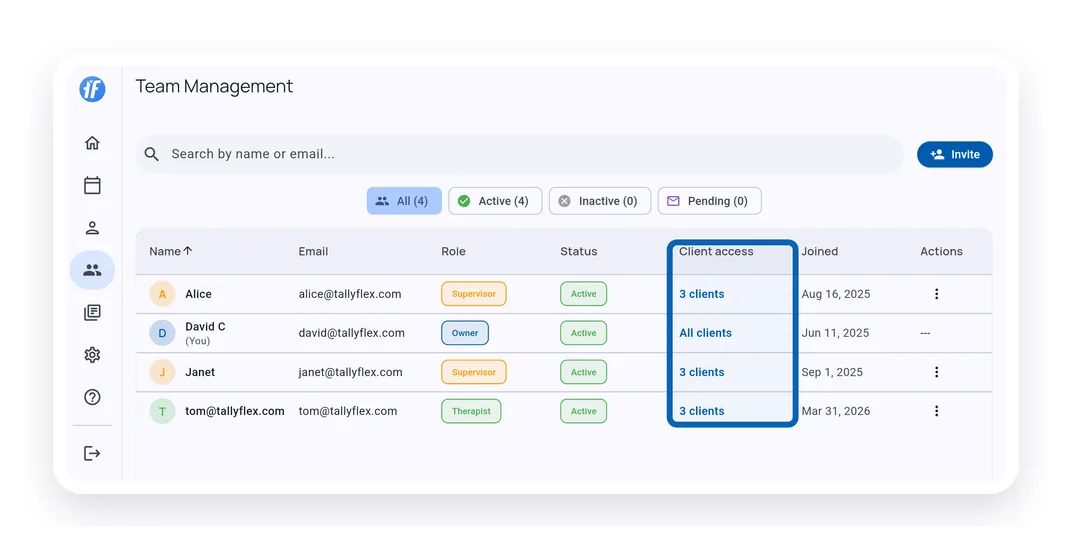
At-a-Glance Access
The Client access column shows whether a member can see all clients, a limited set, or no active clients yet. Select a member row when you need the full list.
Member Access Panel
The side panel keeps the selected member, their role, and their client access in one place.
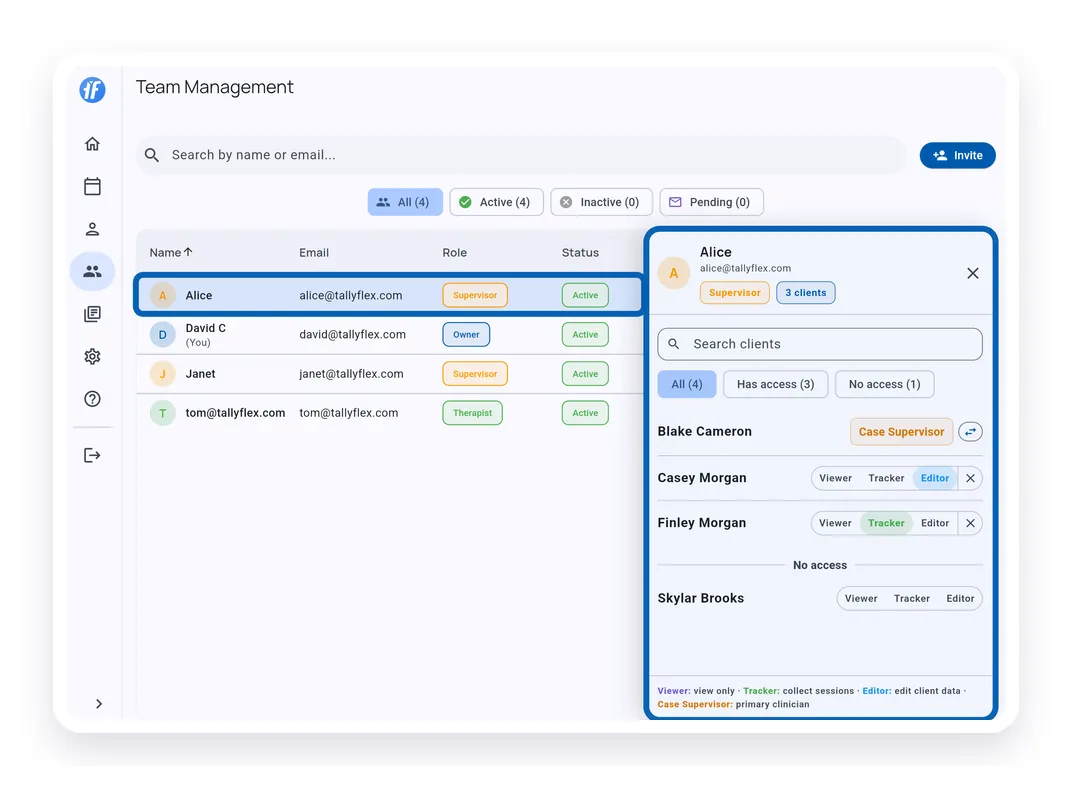
Use the filters to focus on clients this member already has access to, or clients that still need access. For each client, assign the level that matches the member’s responsibility: Viewer, Tracker, Editor, or Case Supervisor.
If access is removed, the member no longer sees that client. Their previous entries stay in the client’s record.
Role Limits
The member’s team role controls which access levels are available. Owners and Admins already have all-client access. Supervisors can be assigned Viewer, Tracker, Editor, or Case Supervisor access. Therapists can be assigned Viewer or Tracker access, but cannot receive Editor access.
When to Use This Page
Use this Team Management flow when you are thinking about a person, such as:
- “What clients can Alice access?”
- “Which clients should this new RBT collect data for?”
- “Did this supervisor keep the right cases after a role change?”
Use Managing Client Access when you are thinking about one client and want to decide which staff members can access that client.
Billing Note
Changing staff access does not add client seats. Teams billing is based on active clients, not how many staff members can access them.
What’s Next?
- Managing Team Members - Change staff roles and deactivate accounts
- Team Roles and Permissions - Understand the permission system
- Managing Client Access - Manage access from a specific client
Need Help?
Questions about team member access? Email support@tallyflex.com for assistance.