Use Daily Points at School
Follow one student’s point card from class-period observations and feedback to progress graphs and a printable daily summary.
This walkthrough uses a fictional student, Avery, whose team has agreed on expectations, supports, and a rating guide.
Before the day starts
Open Clients or Students, find your assigned student, and choose Overview. If the card is not ready, an editor follows Daily Points setup. See missing or locked controls if you cannot use it.
Start a session with the team’s targets, or choose Go to Session on an in-progress appointment to rejoin it.
Avery’s team links Requests for help to Ask for help. The card’s period times keep observation summaries separate, even within one collection session.
Cards can include up to twelve periods. For a card with more than eight, update the TallyFlex app on every device you use for Daily Points.
At the end of Reading, review and respond
Keep the session running. If you see the split-panel icon at the upper right, open it and choose the third tab (checklist icon, Points). Otherwise, open the three-dot session menu → Daily Points. Select Reading. See the menu.
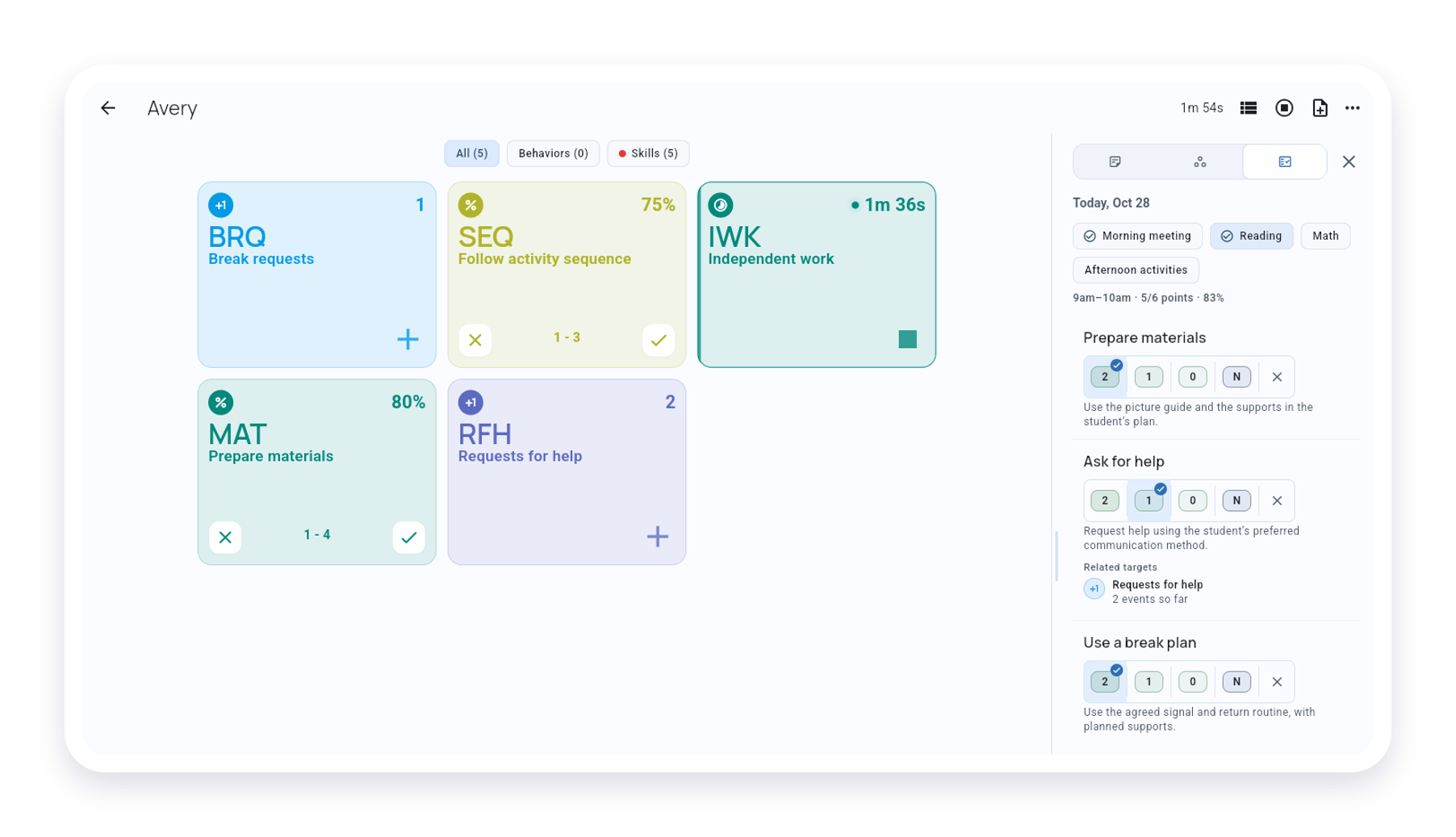
Use the related observations to give specific feedback, then apply the team’s rating guide. A count alone does not tell you whether Avery had an opportunity to ask for help or how the expectation was met.
Ratings save as you select them. Use N for an expectation intentionally not measured; leave a rating missing when it still needs attention. To correct a value you can edit, choose another; the row’s × clears it back to missing.
Close Points with the × in its header to continue collection. Keep the same session when moving to the next point-card period. Stop ends recording. At a staff handoff, agree who will collect and finish outstanding ratings.
At check-out, review the whole card
Check the card on Overview, or open a saved date in Analysis → Daily Points → Daily scores. The example below uses Avery’s saved October 27 card.
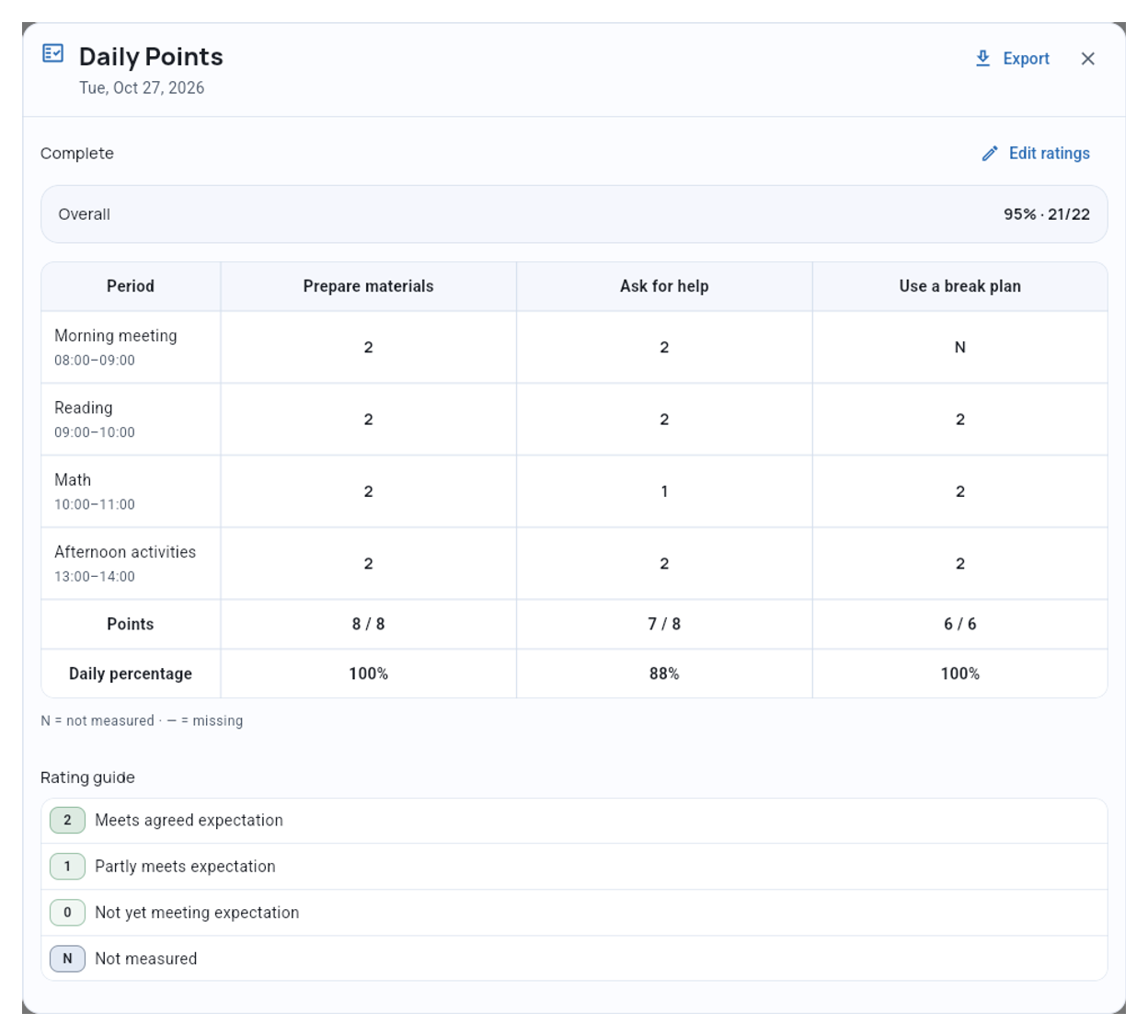
Compare periods before relying on the overall percentage. Discuss a successful period, a useful support, or something to plan for tomorrow. Check missing ratings before calling the card complete.
Use Edit ratings for a correction when your access allows it. The day keeps the guide used when its record began.
At team review, look beyond one day
In Analysis → Daily Points, use Combined for the overall pattern or By expectation to compare skills.
Use the saved expectation colors to follow the same expectation across reviews.
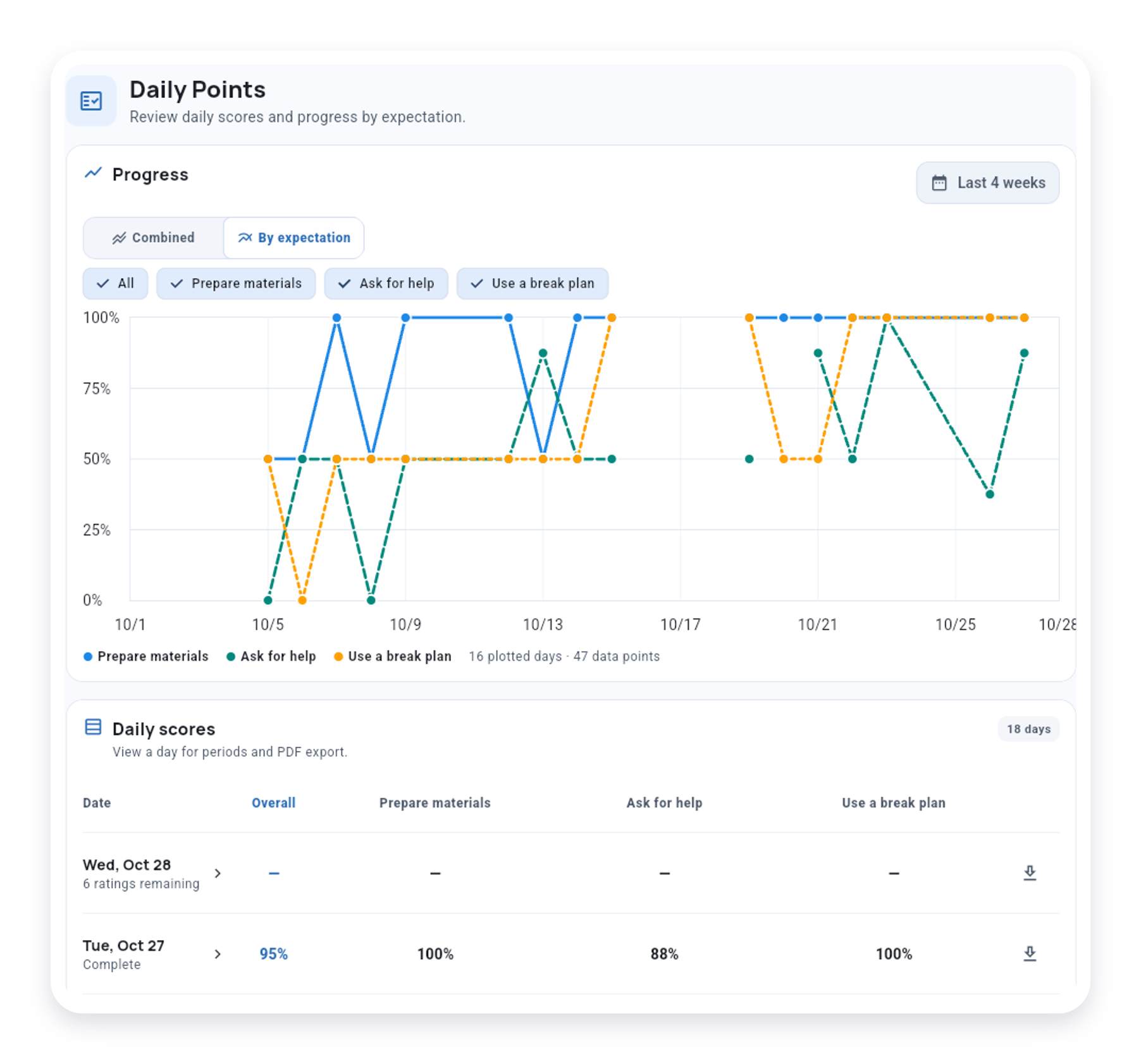
Is asking for help changing while the other expectations stay similar? Open a date in Daily scores to inspect its periods before deciding what a change or gap means. A gap is not a zero score; see score and graph interpretation.
Take a point sheet to the meeting
In Analysis → Daily Points → Daily scores, open the saved day and choose Export. If you entered ratings offline, reconnect first. Save the generated PDF and check that it includes your latest changes, then print it from your PDF viewer or share sheet. Use your organization’s approved handling process for student records.
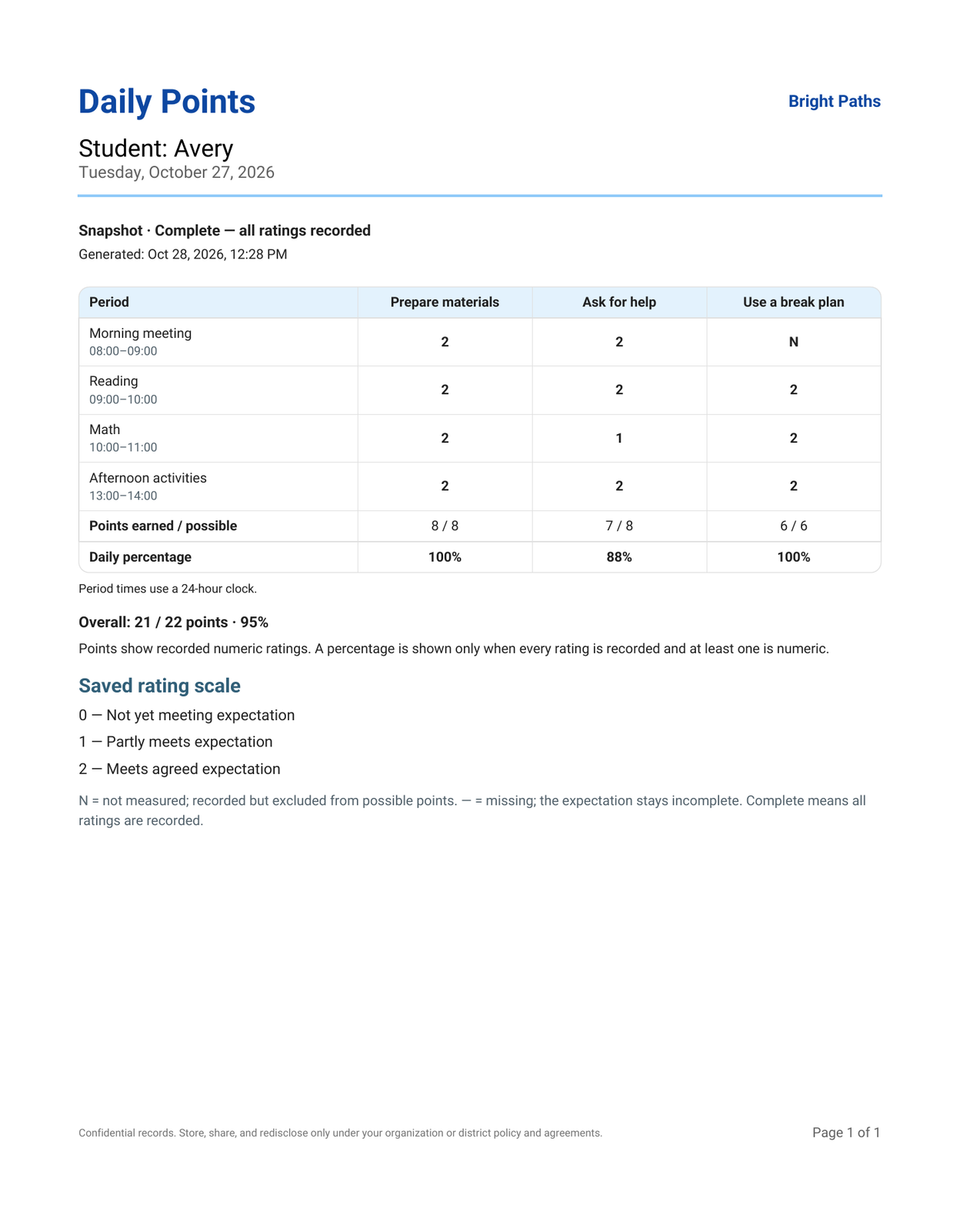
Open Avery’s example point-sheet PDF.
The PDF covers one saved day. See Export one day for incomplete cards.
For the surrounding staff routine, read Daily Progress Reports and CICO Workflows.