Daily Points
Set up a daily point card, enter ratings throughout the school day, and review progress over time.
Daily Points turns a familiar school point card into a shared workflow. Staff can enter ratings throughout the day, review the complete card, and see progress without passing paper between classrooms.
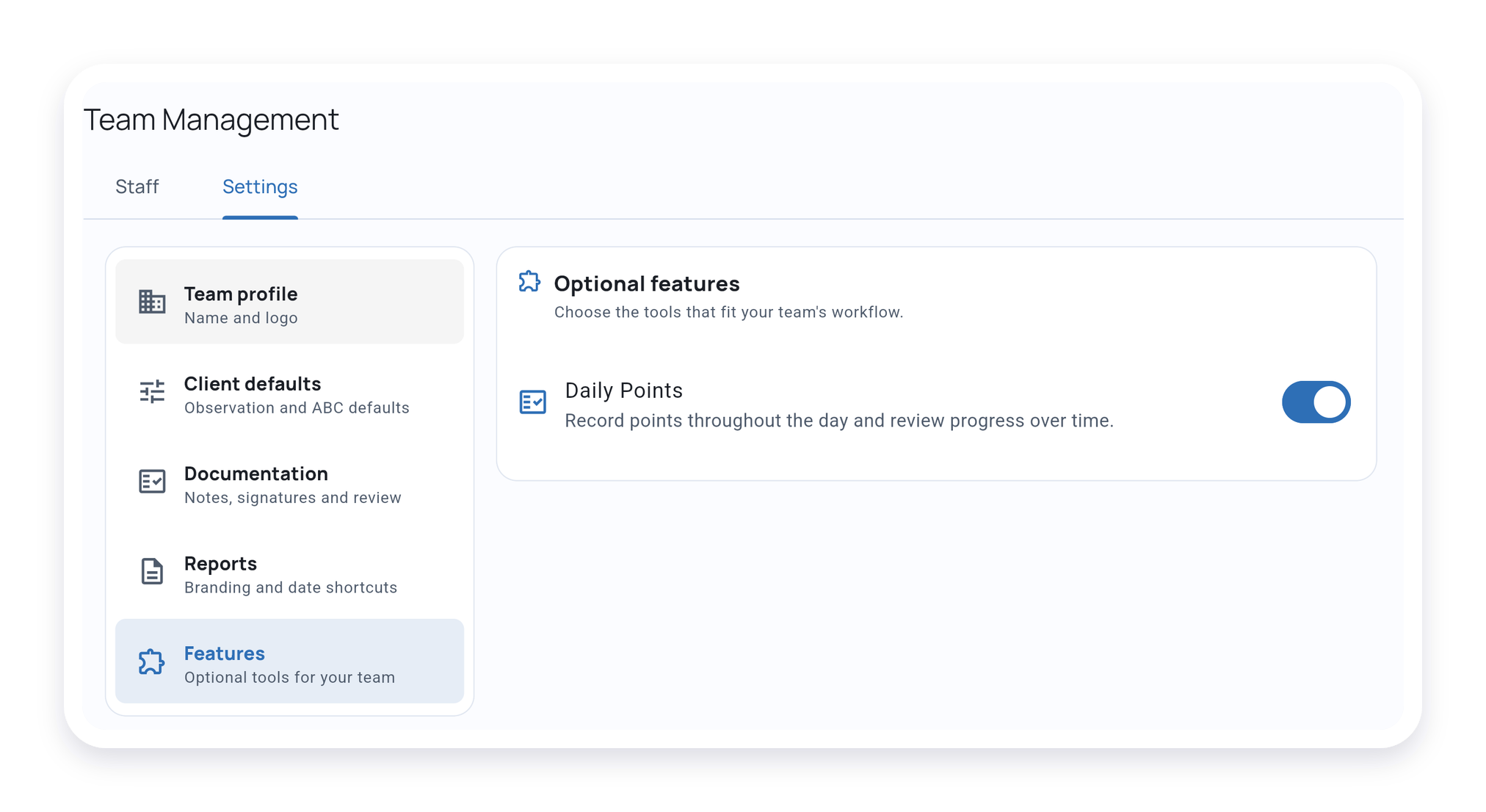
Turn on Daily Points for the team
If Daily Points is not already available, a team owner or admin can enable it in Team Management → Settings → Features.
Set up the point card
Open the student’s Overview and choose Set up Daily Points. Add the expectations and periods you use, then describe what 2, 1, and 0 mean in your school’s rating guide. You can add guidance for an expectation and link related targets for context.
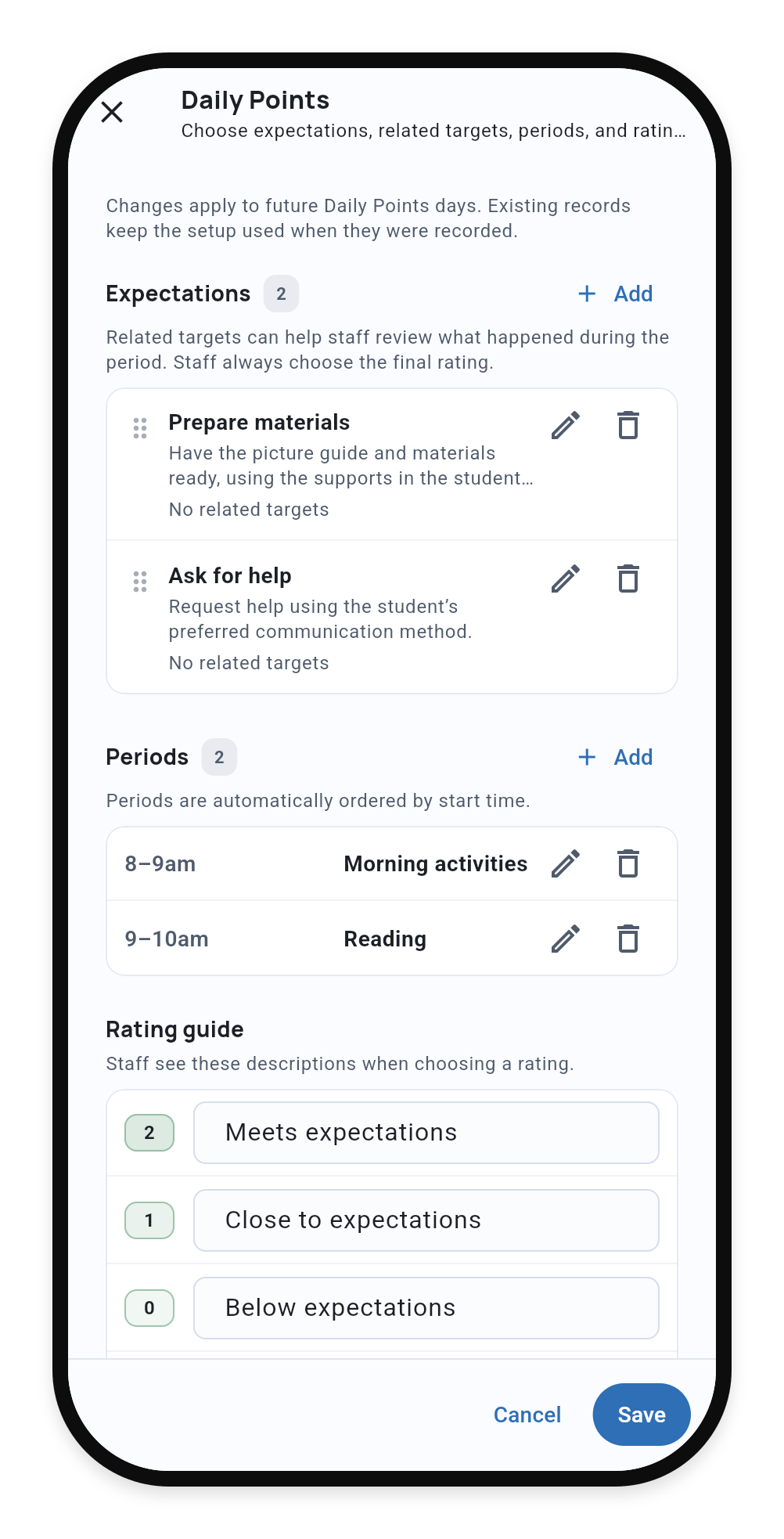
A card supports one to five expectations, one to eight non-overlapping periods, and up to five related targets. To change an existing setup, use the gear menu → Edit Client or Edit Student → Daily Points (Points on a phone), then Edit. Setup changes apply to future days; days with ratings keep their original setup.
Record 0, 1, 2, or N
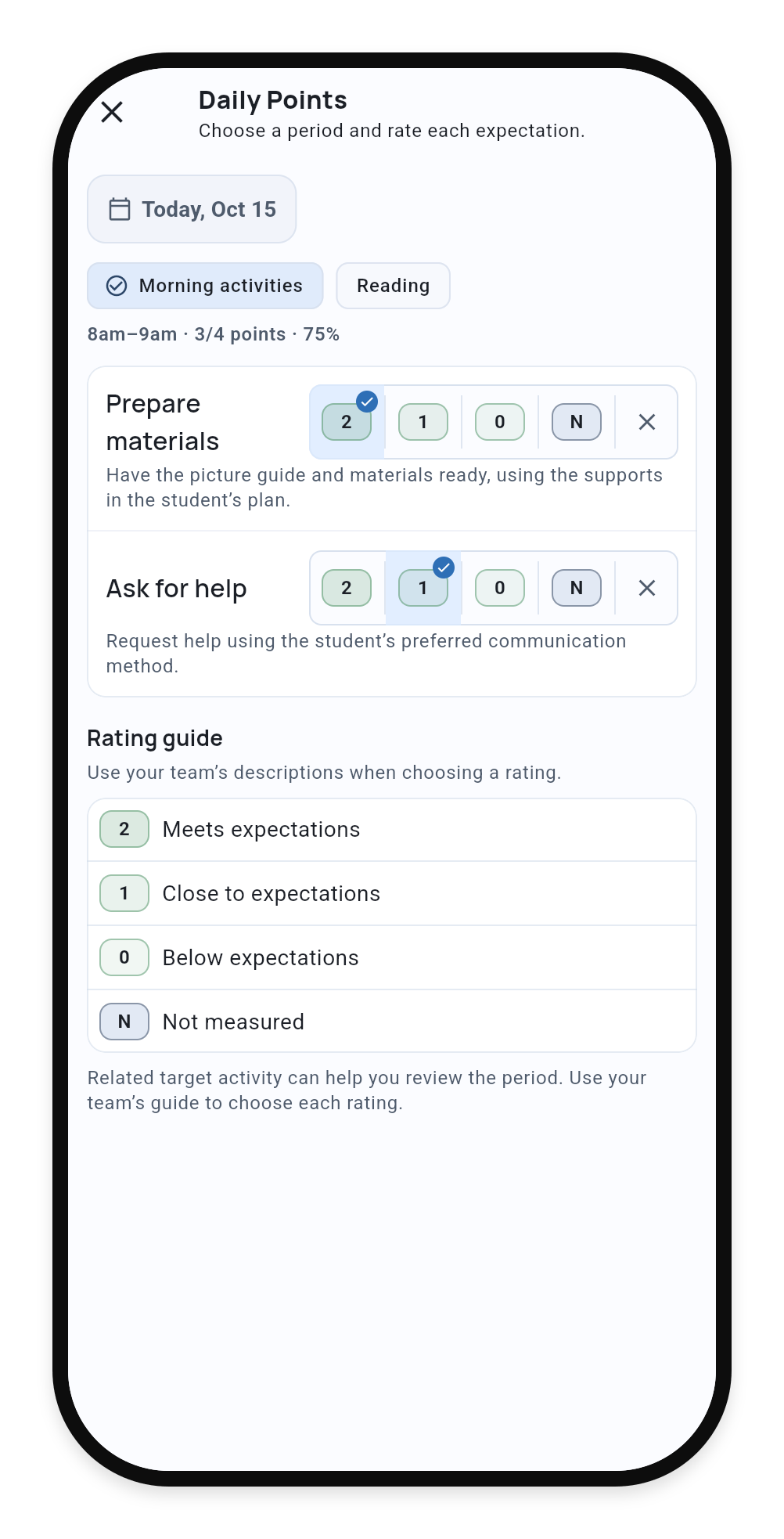
In the student’s Overview, select a period in the Daily Points card and apply your school’s rating guide to each expectation:
- N means the expectation was intentionally not measured for that period. It adds no earned or possible points.
- A dash in the day summary means the expected rating is still missing.
1. Rate the selected period
2. Review the day
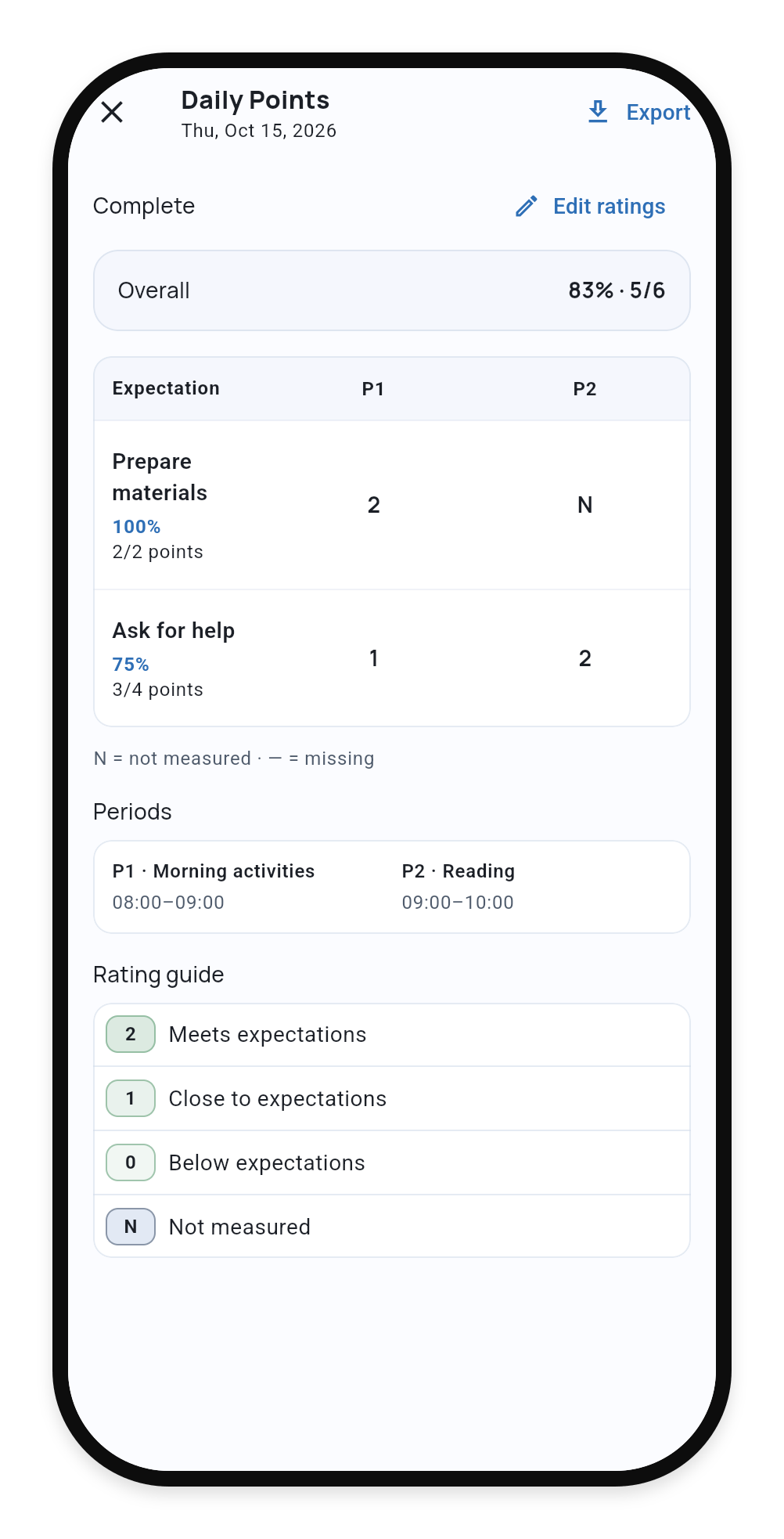
Related target activity can show period-specific observations, such as event counts or Task Analysis steps. Use it as context while applying your school’s rating guide.
Record points during an active session
During a session, open Points beside Notes and ABC. On compact layouts, open the session menu and choose Daily Points.
The Points panel and the Today card update the same daily record. Staff can also enter ratings when no session is running.
Review progress in Analysis
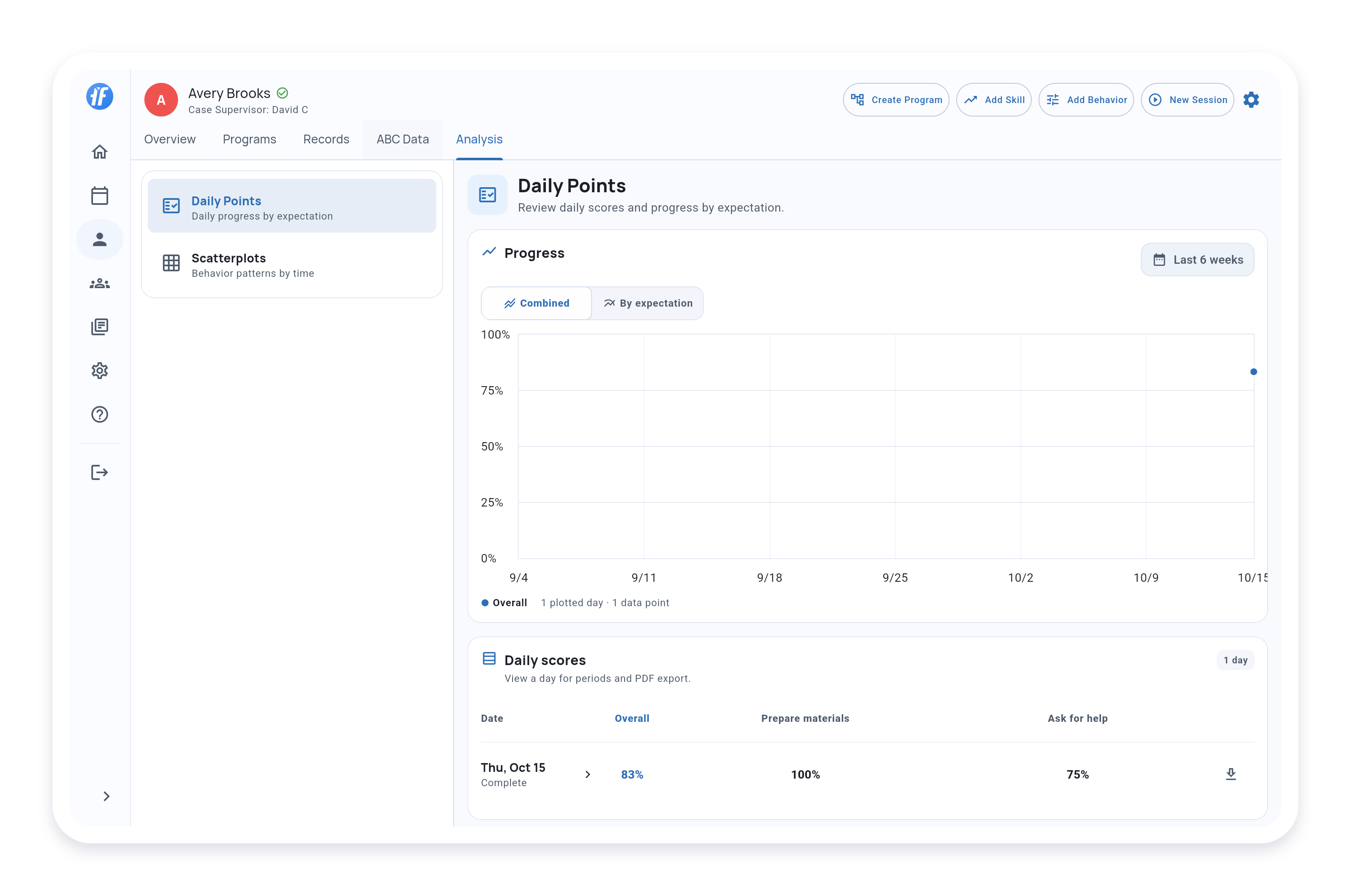
Open Analysis → Daily Points and choose a preset or a custom date range of up to 12 weeks.
Use Combined for overall progress or By expectation to compare selected expectations. Incomplete and entirely not-measured days have no percentage and appear as gaps in the graph.
Daily scores lists each recorded date, expectation percentages, Overall, and completion status. Select a row to review its period-by-period ratings and rating guide. Choose Edit ratings if a correction is needed.
Export one day
From Daily scores, open the day and choose Export. You can also use the export icon on the day’s row. The day summary keeps its ratings and completion status together for review.
A Daily Points day summary is separate from the Daily report, which summarizes service records.
What’s Next?
- Daily Points for School Teams - See where Daily Points fits across the school day
- Daily Progress Reports and CICO Workflows - Build a point-card routine staff can keep up with
- Active Session Interface - Use Points, Notes, and ABC while a session is running
- Working with Graphs - Review other student progress graphs