Manage Note Templates
Create reusable note structures and choices for yourself or your team.
Use templates to organize the final note you write after a session. Reusable sections, prompts, and choices help you cover the information you need while you supply the visit-specific observations. Templates and reusable choices are available on Solo and Teams.
On Solo, keep a structure for your own documentation. On Teams, shared templates let an organization define a consistent structure for staff, making completed notes easier to review.
Start with a built-in template
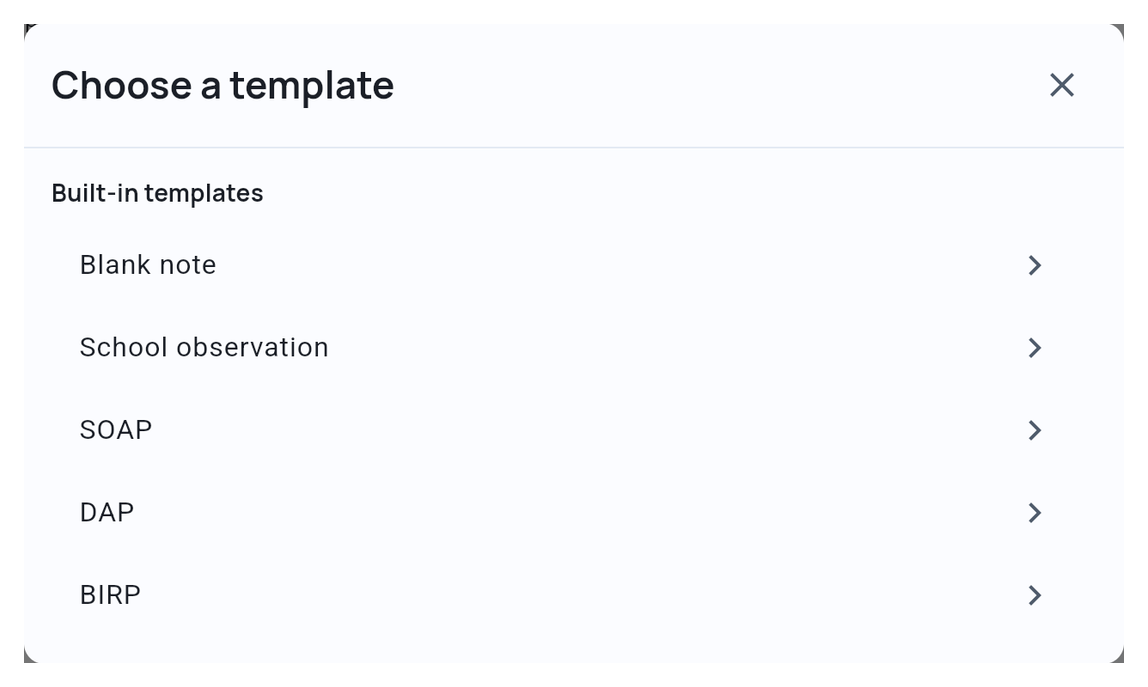
You do not need to create a template before using one. From a visit’s Clinical Notes, open Template to choose SOAP, DAP, BIRP, School observation, or Blank note, depending on the choices available to you.
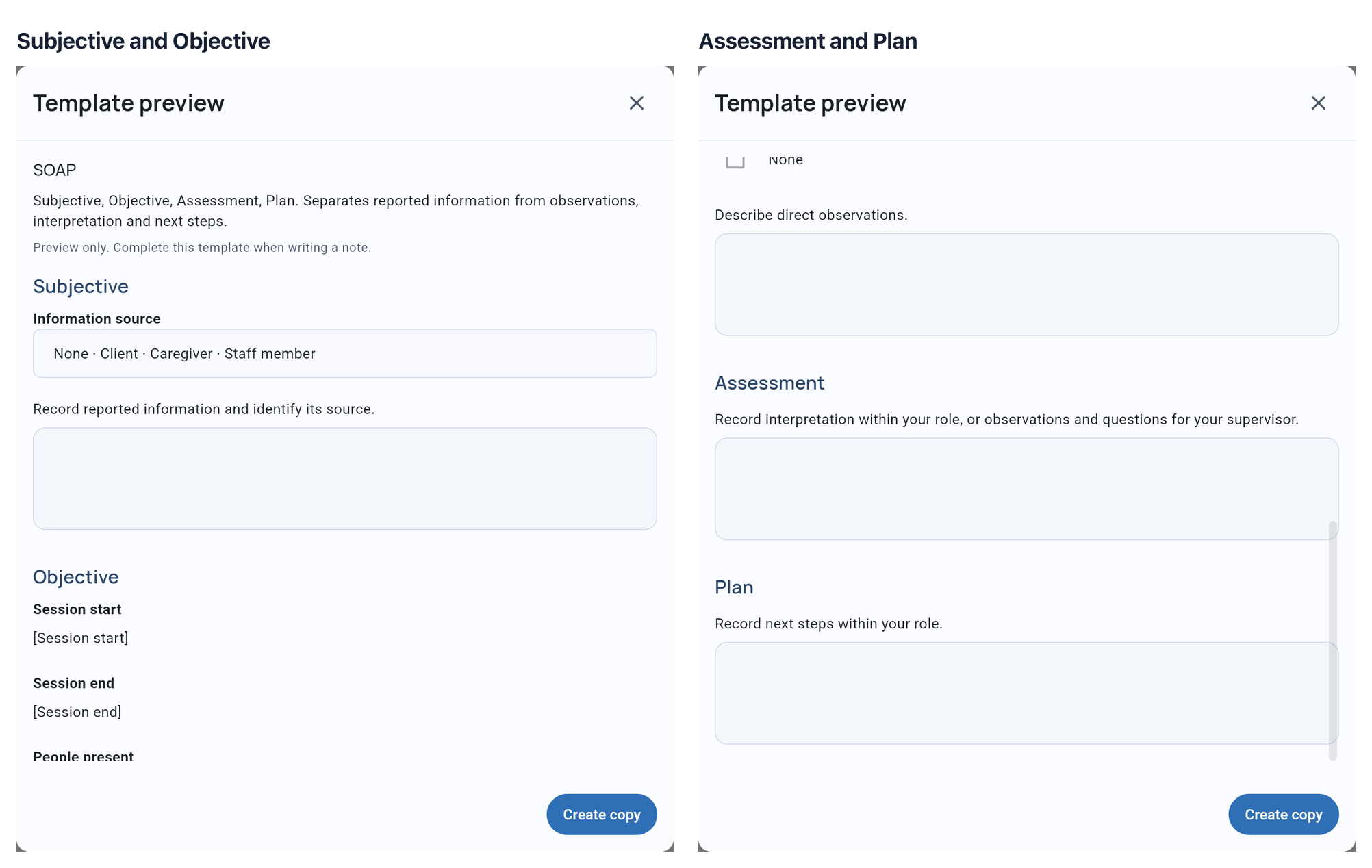
SOAP provides Subjective, Objective, Assessment, and Plan sections. Use a built-in structure as it is, or create a custom template when you need different prompts and fields. Team owners and admins can choose which starting templates staff can use.
Open Clinical notes settings
- Solo: Open Settings → Documentation → Clinical notes.
- Teams: Owners and admins open Team Management → Settings → Documentation → Clinical notes.
Team staff use the templates made available by their team. Select SOAP in Clinical notes settings to preview its sections.
Create a reusable structure
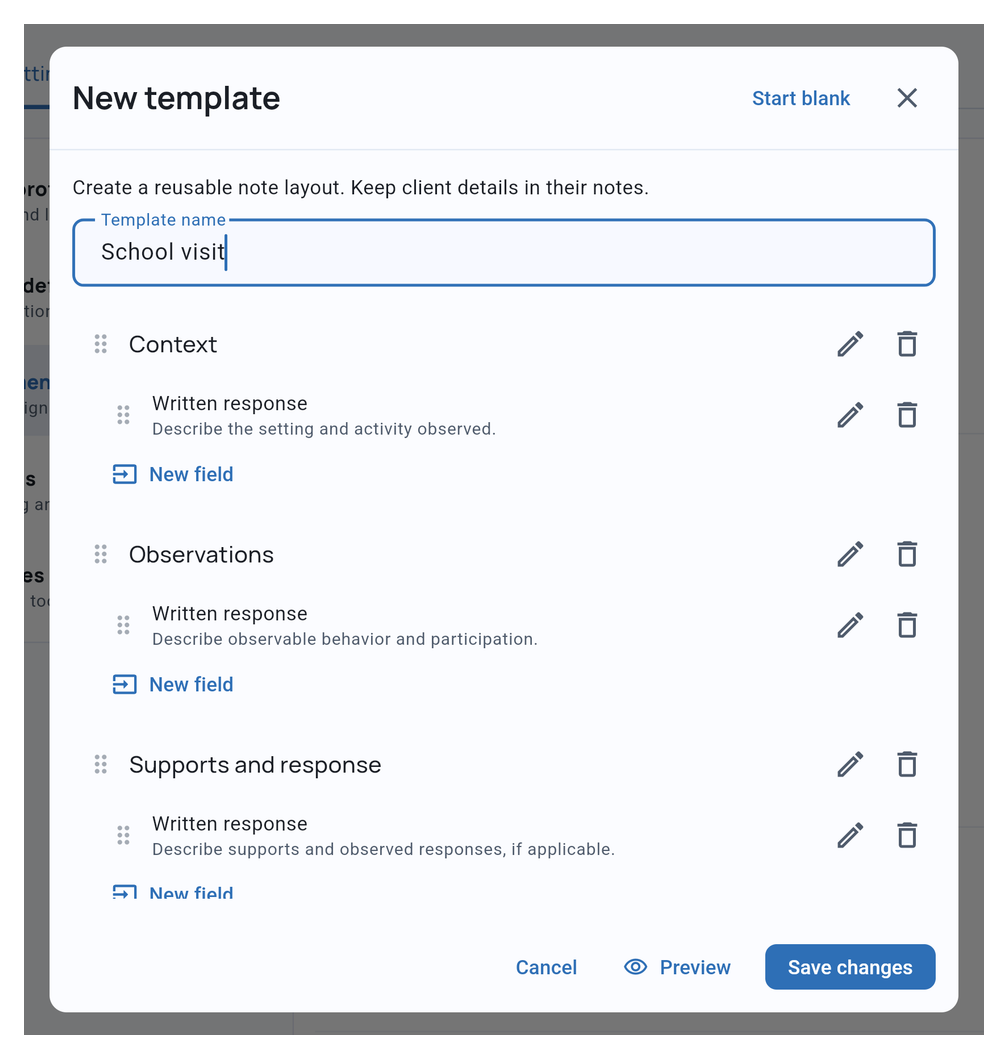
In Custom templates, choose New template and select a starting point. Give it a clear name, then arrange the sections and fields your notes need. Keep reusable template text general; enter visit-specific details in the actual note.
1. Arrange the template
2. Preview before saving
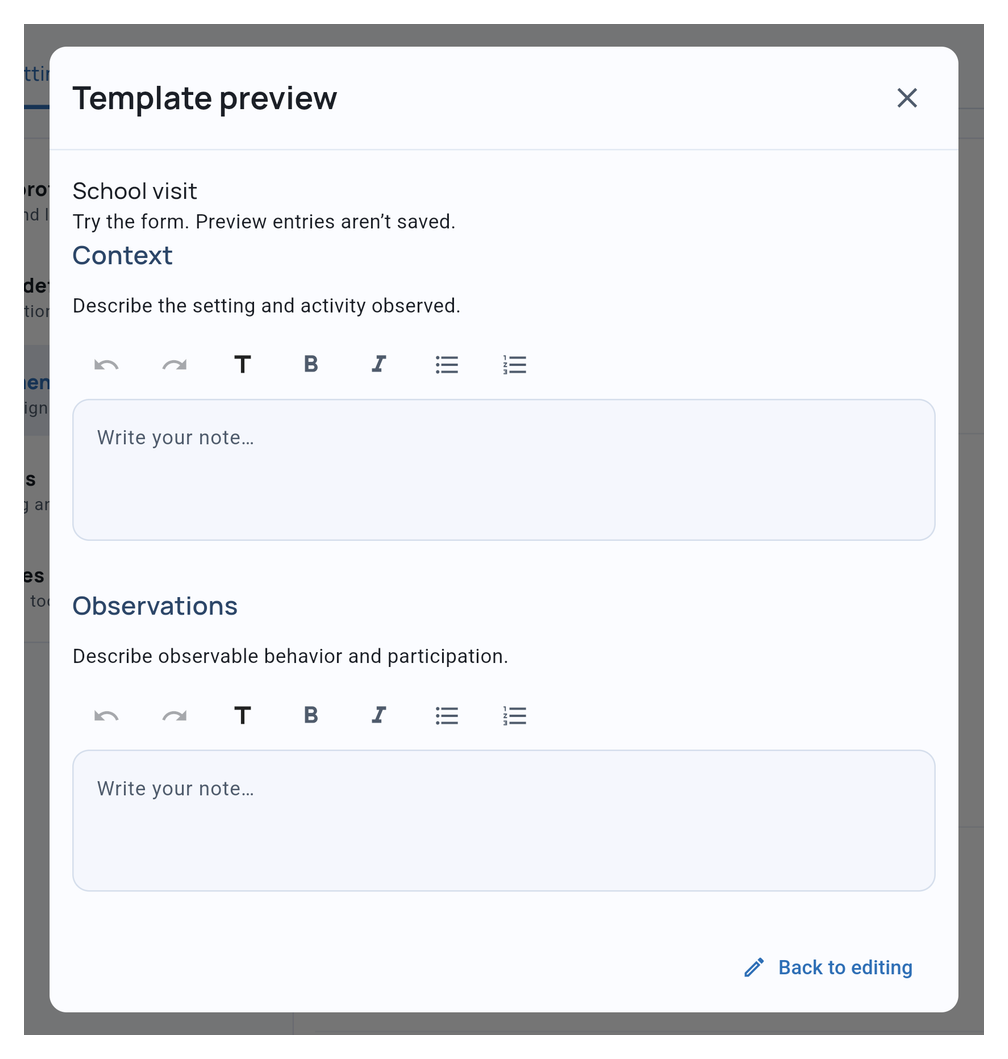
Preview the template before saving it. Available custom templates appear in the note chooser alongside available starting templates.
Use Choice lists to manage reusable choices used by template fields. The choices help you select consistent wording while leaving room for your observations.
Choose what staff can use
Team owners and admins can control which starting templates are available. Blank note remains available for free-text writing.
Retiring a custom template removes it from the chooser. Existing notes stay unchanged.
Use a template for a visit
Open the Service Record’s Clinical Notes, then choose Template. Applying a template to an existing note replaces its content after confirmation; use Undo template if you need to restore it.
See Write Clinical Notes for writing, session context, and PDF preview.