Write Clinical Notes
Turn observations from the visit into your final session note, with recorded context and templates close at hand.
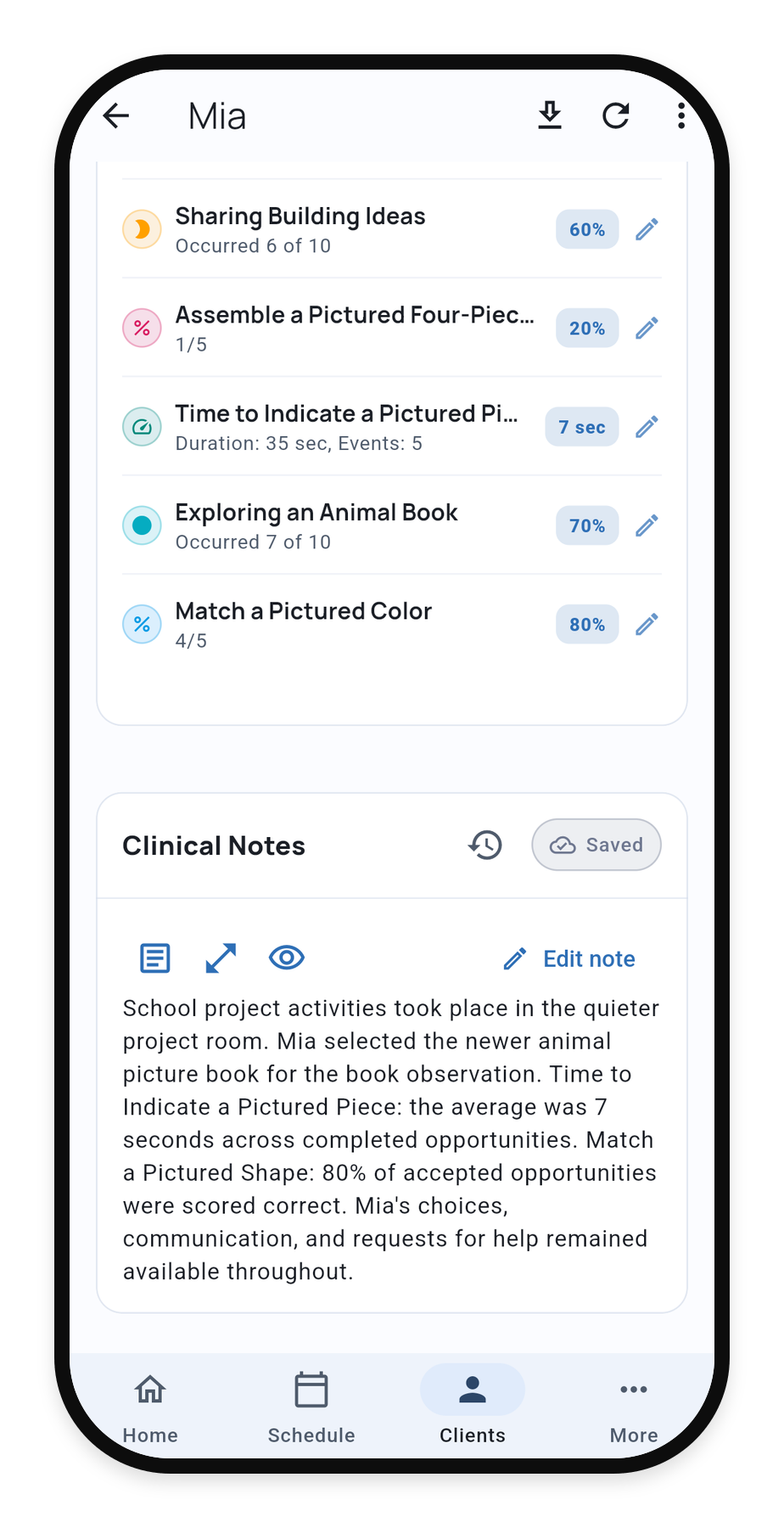
After the session, use Clinical Notes to write the final account of the visit. Bring together what happened, who was present, relevant context, and the supports or interventions you used and the responses you observed. Refer to Quick Notes captured during collection as you develop your narrative.
Open the completed visit from the client’s Records tab, then find Clinical Notes in its Service Record. On Solo and Teams, formatted writing and templates help you organize the note.
1. Open Clinical Notes
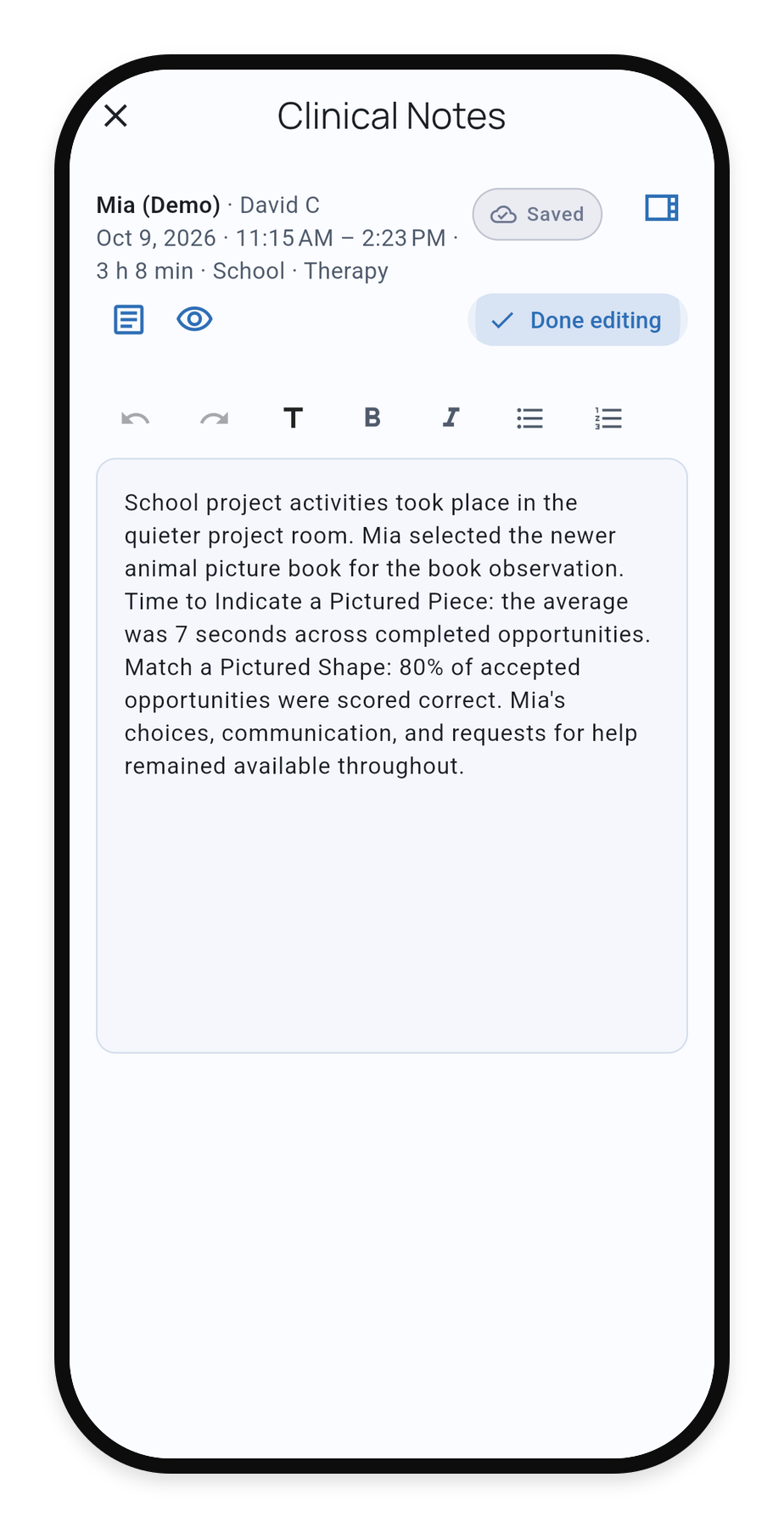
2. Write the visit note
3. Consult session context
Write or choose a template
Choose Edit note to write. Use headings, emphasis, and lists when they make the note easier to read.
For a structured starting point, open Template. Built-in choices include SOAP, DAP, BIRP, and School observation, alongside available custom templates. Teams can choose which starting templates staff see.
SOAP organizes the note into Subjective, Objective, Assessment, and Plan sections. Complete the sections with your observations and the documentation required for your work. Blank note gives you ordinary free text. If a note already contains content, applying a template asks you to Replace note. Undo template restores the previous content while that option is available.
Keep the session in view
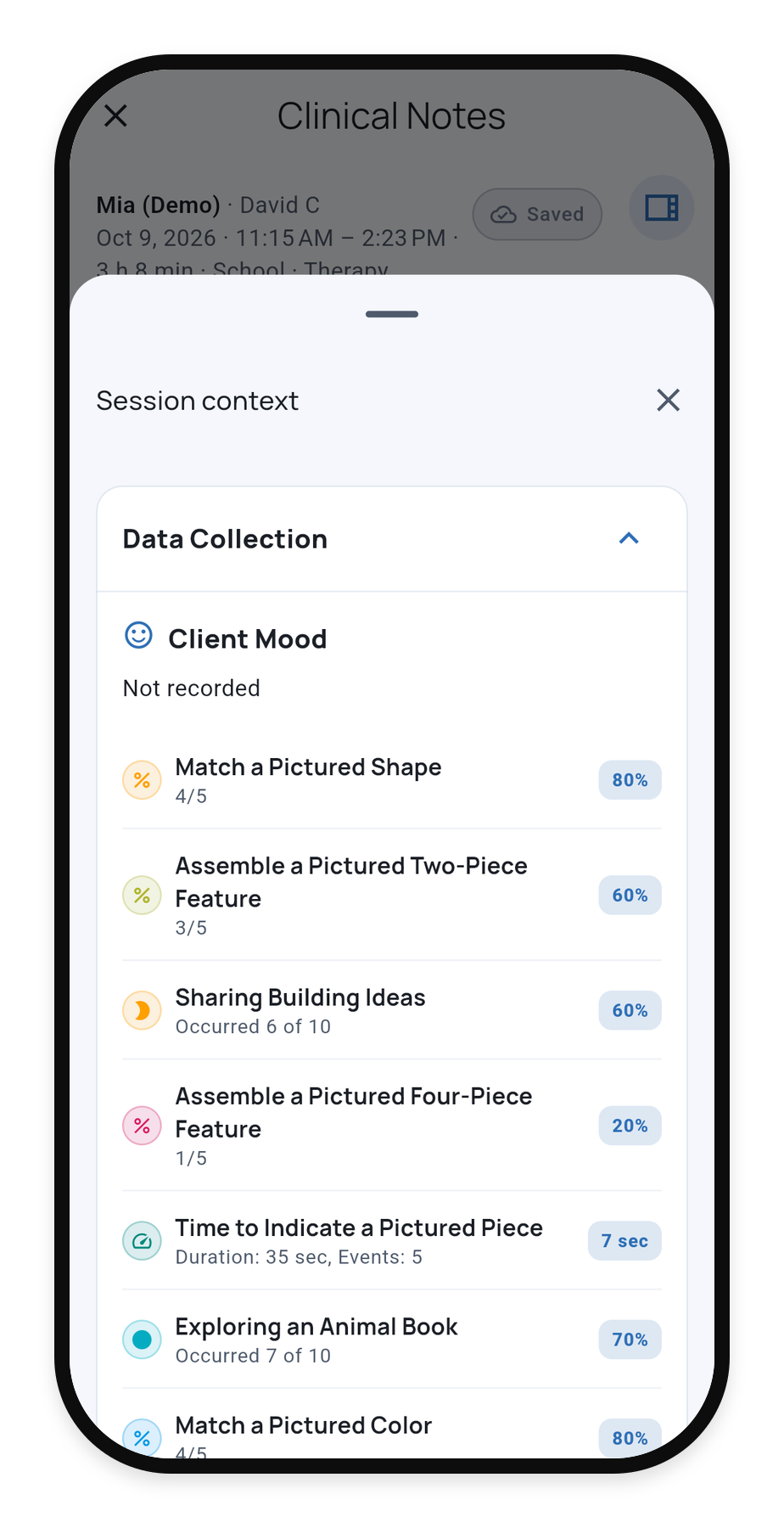
Quick Notes holds the brief observations you captured during the session. Use them as reference while you write the fuller final note. In an ordinary note, session Quick Notes can carry over automatically; review and edit that text into your visit note. For a structured template, select or copy the Quick Notes you need into the appropriate fields.
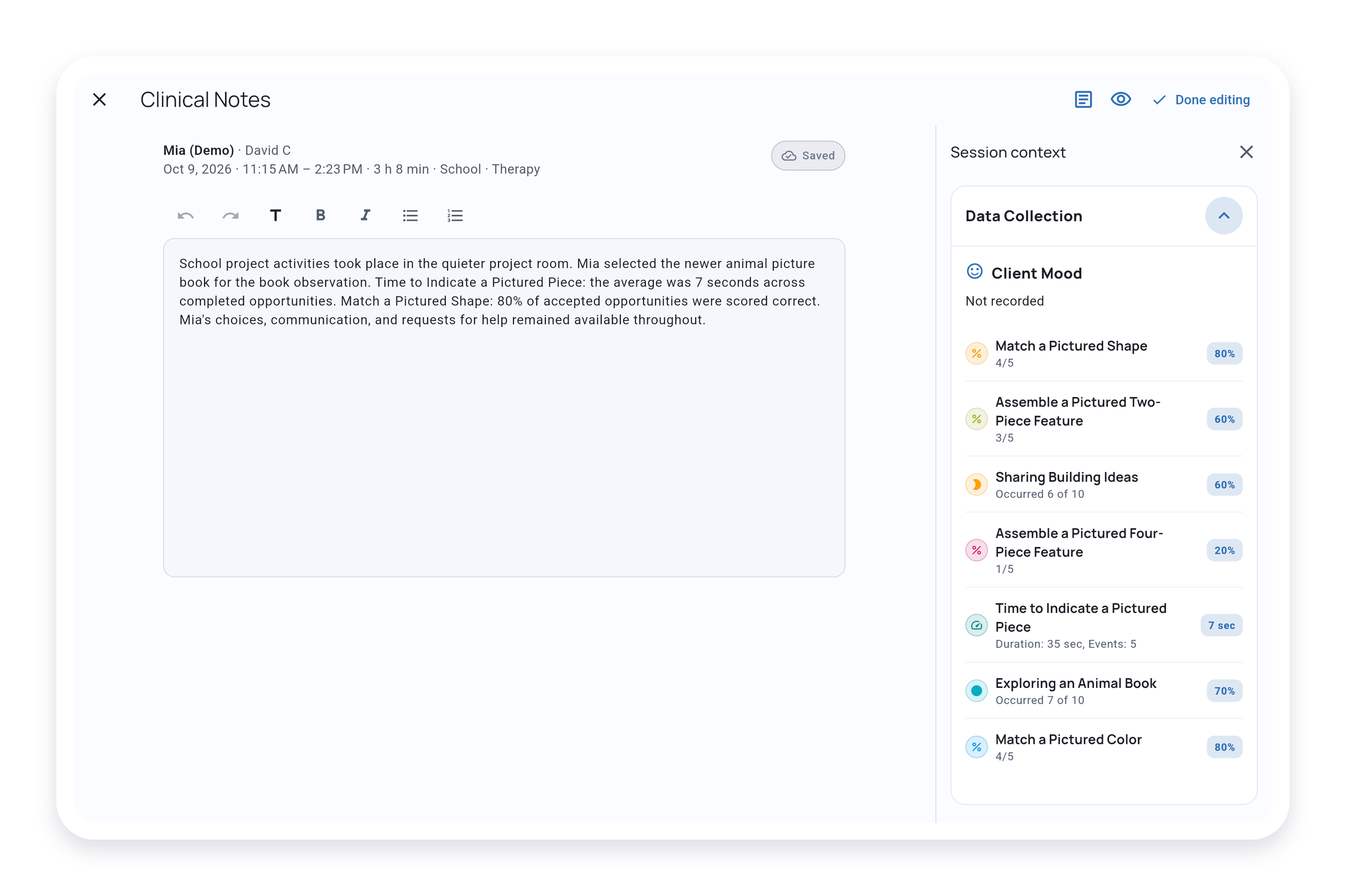
Expand the editor for more writing space. Session context brings recorded data and any available Quick Notes alongside your writing on a wide screen, or into a panel on a tablet or phone.
Preview and finish
Changes save automatically. Finish syncing before signing or exporting. Use Preview PDF to check the note’s layout. To download the visit with its data or signatures, use Export a Service Record.
Signed notes use the correction workflow. Correcting appointment details does not rewrite an already signed narrative; review any notice about changed session facts.